





- Stop Motion Animation
-

Hello!
We've noticed that you are in .
Visit Canon .
 Close
Close
Stop motion made easy for animators to lock in focus and movement within every frame.
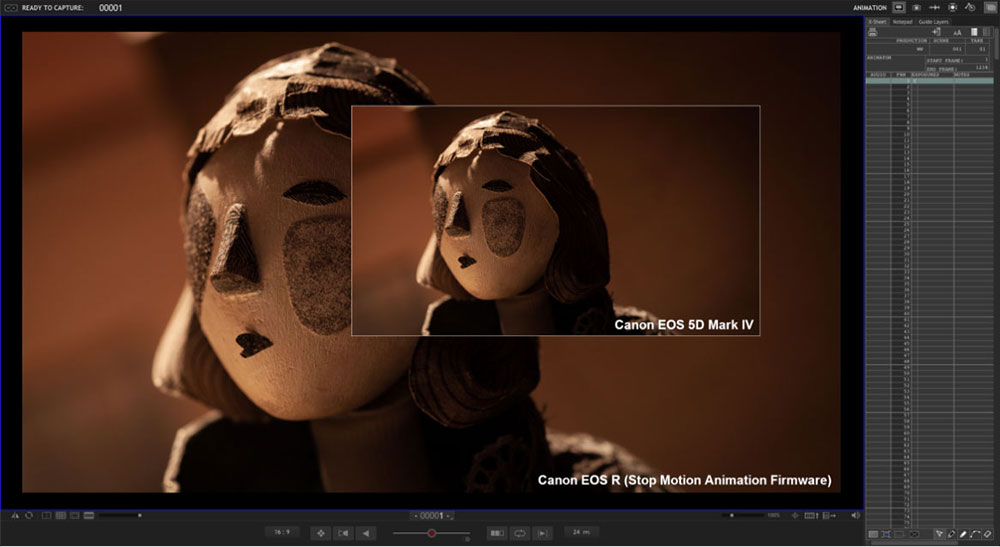
The new Stop Motion Animation firmware increases your Live View resolution to 1920x1280 from Canon’s normal of 960x640 when connecting to compatible stop motion animation software, like Dragonframe.
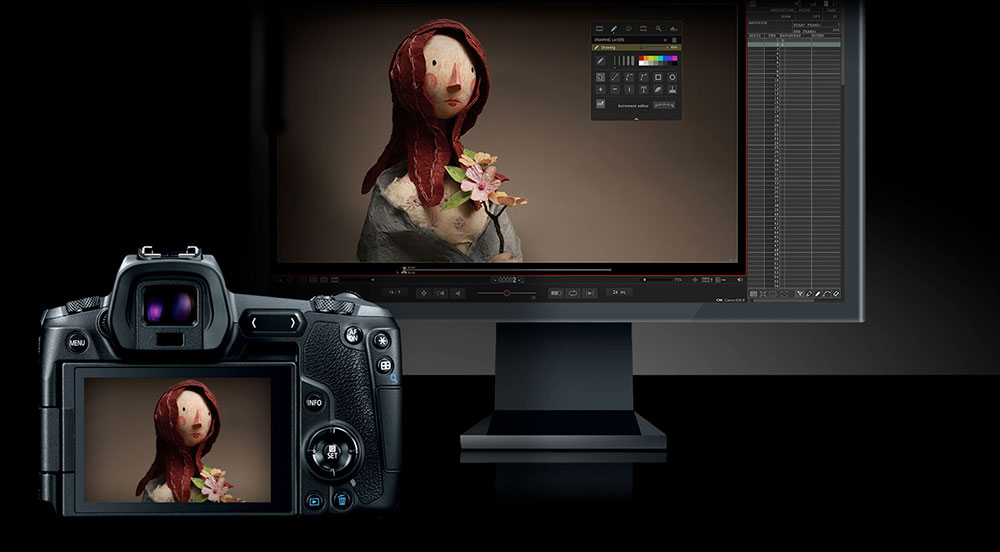
Live view is critical to animators creating stop motion animation films. Animators use the remote live view of the camera to review critical details and make decisions within stop motion animation software, like Dragonframe. Canon’s Stop Motion Animation firmware increases the Live View to 1920x1280 - helping animators see subtle movement for refined animation.
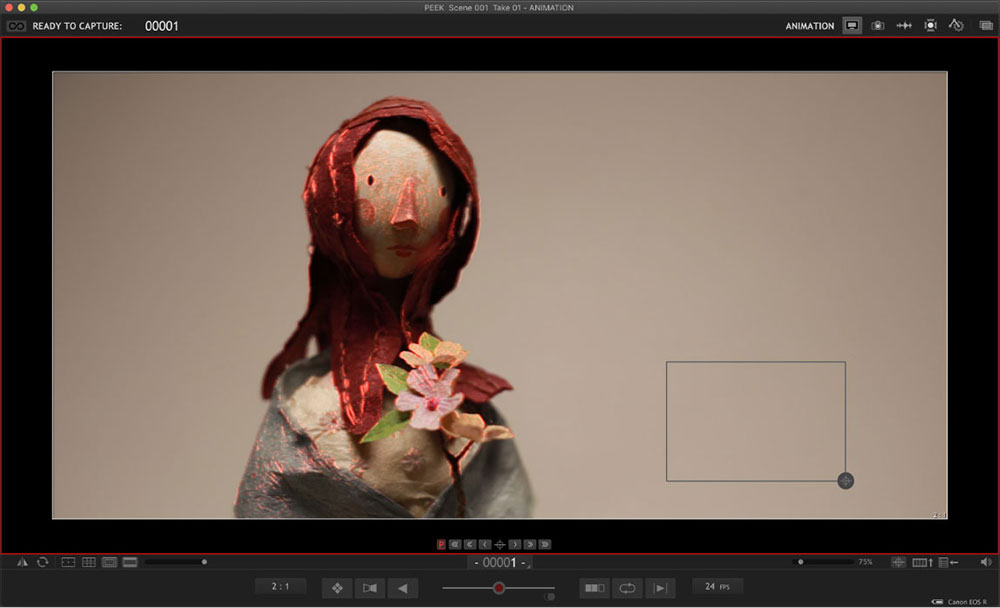
Seeing Focus Peaking on the full screen allows the animator to precisely capture fine detail and adjust for desired depth of field.
Critical focus on a subject's eyes (red edge) gives the animator the confidence that the scene flows as directed.
| New Features | Benefits |
|---|---|
| Focus Position Memory enabled on all EOS RF Lenses | These features provide the advantages of a digital lens, without the disadvantages normally associated with them |
| The Focus Position Memory feature allows for accurate manual focus of a subject. via computer control with Dragonframe software*. | The user gets computer-controlled aperture without introducing aperture-based flicker. |
| Set the Aperture Value via “Aperture Lock” function with Dragonframe software*. | The user also gets programmable focus without needing extra focus motor equipment. |
| Toggle HDMI on and off VIA the camera's menu. (EOS R5, EOS R6 Mark II, EOS R6 Mark III, EOS R6 V, EOS R8 and EOS R100 only) |
The user can use the HDMI port for external monitors or external recording when toggling the stop motion mode to off in the menu. (EOS R5, EOS R6 Mark II, EOS R6 Mark III, EOS R6 V, EOS R8 and EOS R100 only) |
Standard Firmware vs Stop Motion Animation Firmware
| Compatible EOS Camera** Features | Compatible EOS Camera** Standard Firmware | EOS R and EOS RP Stop Motion Animation Firmware |
EOS R5, EOS R6 Mark II, EOS R6 Mark III, EOS R6 V, EOS R8 & EOS R100 Stop Motion Animation Firmware |
|---|---|---|---|
| Live View Resolution | 960x640 | 1920x1280 | 1920x1280 |
| Live View Manual Focus Peaking | x | x | |
| HDMI output | x | x | |
| Focus Position Memory | x | x | |
| Aperture Lock | x | x | |
| Stop motion Mode On/Off Menu Toggle | x |
Disclaimer
Important information regarding EOS R5, EOS R6 Mark II, EOS R6 Mark III, EOS R6 V, EOS R8, EOS R100, EOS R, & EOS RP Stop Motion Animation Firmware installed:
• HDMI output is not available with the EOS R and EOS RP cameras.
• HDMI output is menu selectable ONLY with the EOS R5, EOS R6 Mark II, EOS R6 Mark III, EOS R6 V, EOS R8 & EOS R100 cameras.
• [Disp. performance] cannot be set.
• The shooting screen cannot be displayed with resolution of 1920 x 1280 pixels and MF peaking will not show up even if [MF peaking settings] is set to [On] under the following conditions:
◦ When an EF-S lens is used
◦ When [Multiple exposure] is set
◦ When [Cropping/aspect ratio] is set to an option [1.6x (crop)]
◦ When the shooting screen is magnified
◦ When you keep holding down the shutter button after shooting
To add the Stop Motion firmware to your EOS R5, EOS R6 Mark II, EOS R6 Mark III, EOS R6 V, EOS R8, EOS R100, EOS R, or EOS RP, send your camera to an authorised Canon Camera Repair Workshop. Installation by our qualified technicians is available for a service upgrade fee of $149 inc GST + $33.00 return freight if applicable.
How to Edit Your First Video in Premiere Pro (Beginner Guide)

EF lenses vs RF lenses- We explore the top 5 reasons why Canon’s RF system of lenses offers superior quality compared to EF lenses. How to choose which is best for you.

Andy Taylor, one of Australia’s foremost cinematographers and news cameramen talks tools of the trade for cinematographers; recommended camera settings for news and documentary shooting; tips for working with Netflix; and, five pieces of career advice to help aspiring videographers.