
 Close
Close





Solution
Use either European DL or US Comm. Env. #10-sized envelope. With proper printer driver settings, the address will be printed according to the direction of envelope.
Caution
Do not use the following envelopes:
1. Prepare the envelopes.
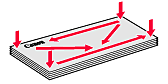
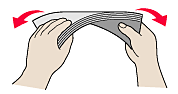
Press the envelope flat, working from the middle to the edge.
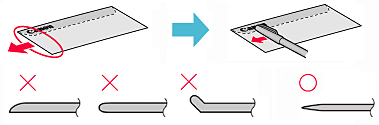
* The above illustrations show a side view of the leading edge of the envelope.
Caution
2. Load the envelopes.
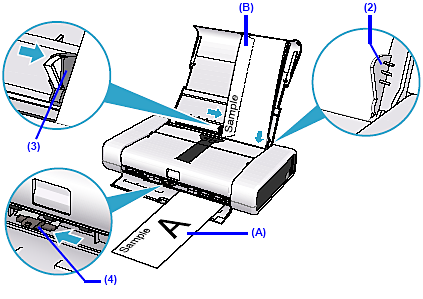
(A) Printing orientation
(B) Make sure the flaps are folded.
(1) Slide the Paper Guide to the left side of the Rear Tray.
(2) Load the envelope against the guide on the right side of the Rear Tray.
Load with the address side facing UP and the rear flaps DOWN on the left.
Up to 10 envelopes can be loaded at once.
(3) Slide the Paper Guide against the left side of the envelope.
Do not slide the Paper Guide too strong. Paper may not be fed properly.
(4) Set the Paper Thickness Lever to the left.
Reset the Paper Thickness Lever to the right when you finish printing.
3. Specify the settings in the printer driver.
(1) Select Envelope in Media Type.
(2) Select the size for envelopes.
In Windows, select DL Env. or Comm. Env. #10 in Page Size.
In Macintosh, select DL Envelope or #10 Envelope in Paper Size.
(3) Select Landscape in Orientation.
Caution
Be sure to set the printer driver setting properly. If you do not, the address will be printed in the wrong direction.
Caution
For details on printer driver settings, see "Printing with Windows" or "Printing with Macintosh"