
 Close
Close





Solution
You can print on European DL and US #10 envelopes.
The address is automatically rotated and printed according to the envelope's direction by specifying with the printer driver properly.
Caution
- Envelopes with an embossed or treated surface
- Envelopes with a double flap (or sticker flaps)
- Envelopes whose gummed flaps are already moistened and adhesive
Caution

1. Prepare envelopes.
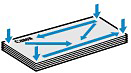
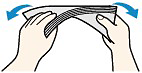
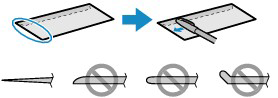
The figures above show a side view of the leading edge of the envelope.
Caution
2. Load envelopes.
(1) Open the Paper Support.
Do not open the support as an extension.
(2) Open the Paper Output Tray gently.
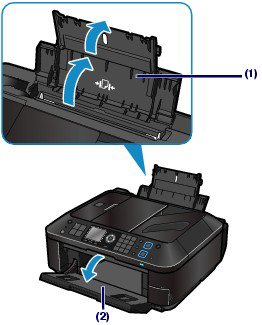
(3) Slide the Paper Guides (A) to open them, and load the envelopes in the center of the Rear Tray WITH THE ADDRESS SIDE FACING YOU.
The folded flap of the envelope will be faced down on the left side.
Up to 10 envelopes can be loaded at once.
(4) Slide the Paper Guides (A) to align them with both sides of the envelopes.
Do not slide the Paper Guides too hard. The envelopes may not be fed properly.
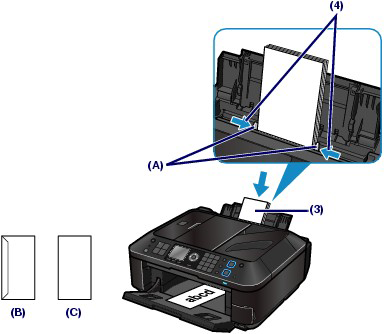
(B) Rear side
(C) Address side
Caution
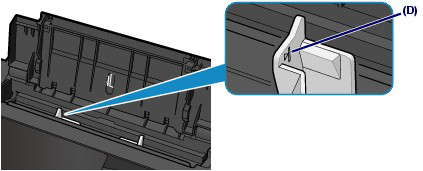
3. Specify the settings with the printer driver.
(1) Select Envelope in Commonly Used Settings on the Quick Setup sheet.
(2) Select DL Env. or Comm. Env. #10 in the Envelope Size Setting window.
(3) Select Landscape in Orientation.

(1) Select Envelope in Media Type.
(2) Select Envelope DL (or DL Envelope) or Envelope #10 (or #10 Envelope) in Paper Size.
(3) Select the landscape orientation in Orientation.
Caution
Caution
If the print result is upside down, open the printer driver setup window, select [ Envelope ] in [ Commonly Used Settings ], then select the [ Rotate 180 degrees ] check box in [ Additional Features ].
Caution
Windows
-⋗ [ Printing Documents (Windows) ]
Macintosh