Introduction
There are different ways of controlling the camera remotely from a smartphone.
Controlling the Camera via Bluetooth
You can control the camera by using a smartphone paired via Bluetooth as a remote control.
Controlling the Camera via Wi-Fi
As you view a live image on a smartphone connected via Wi-Fi, you can shoot remotely.
Caution
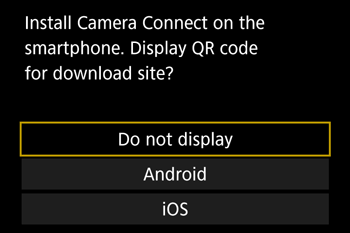
Before connecting to the camera, you must install the free dedicated Camera Connect app on the smartphone.
Please refer to "Related information" for details on the smartphones which can be connected with a camera wirelessly.
Interface or functions of Camera Connect are subject to change, for application improvement or update. In such a case, features of Camera Connect may differ from sample screens or operation instructions in this explanation.
Use the latest version of the smartphone OS.
Activate Bluetooth and Wi-Fi on the smartphone.
If the camera temporarily overheats during extended 4K recording or full HD recording at a high frame rate, [

] is displayed and recording stops. At this time, movie recording will be unavailable, even if you press the movie button. Following the instructions displayed, either choose a movie recording size other than [

], [

], [

], [

] or turn off the camera to let it cool down before you resume recording.
Caution
In the following explanation, smartphone setting procedures are indicated by the

, and camera setting procedures are indicated by the

icon.
For convenience in this article, Android smartphones and tablets are collectively referred to as "smartphones".
Connect via Bluetooth
1. Confirm the smartphone's settings.
Make sure that [Airplane mode] is not set.
Turn [Wi-Fi] to [ON].
Set the [Bluetooth] switch to [ON].
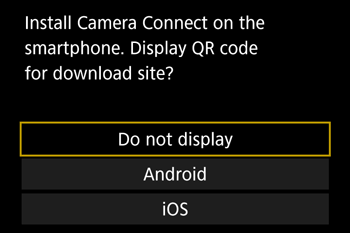
2. Download Camera Connect from the Google Play and install it on the smartphone.
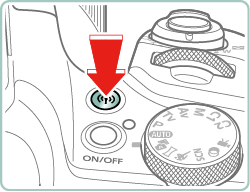
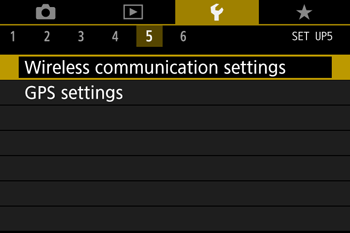
3. Press the  button.
Caution
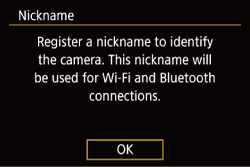
When the [Nickname] screen appears, press the  button.
To use the nickname displayed, press the

button.
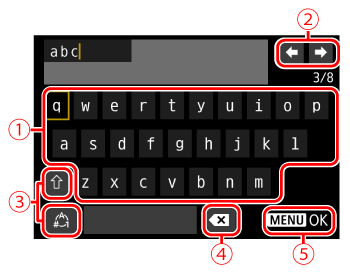
Nicknames are 1 – 8 characters and can be changed later. For more information on using the keyboard, please refer to "Using the On-Screen Keyboard".
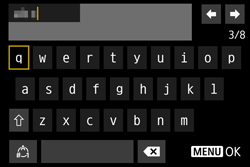
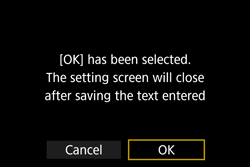
Press the

/

buttons to choose [ OK ], and then press the
button.
Caution
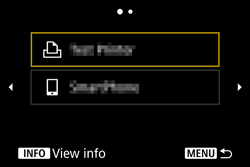
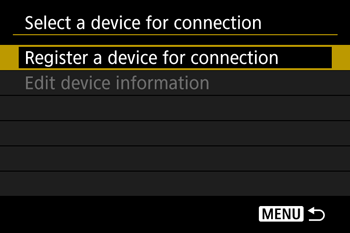
If the following screen appears, press the
/
buttons, the screen for step 4 will appear.
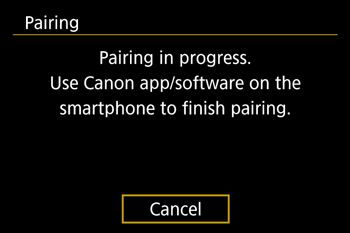
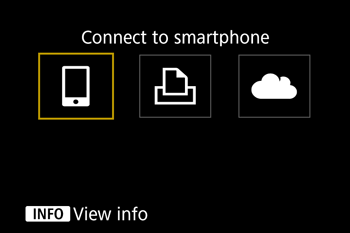
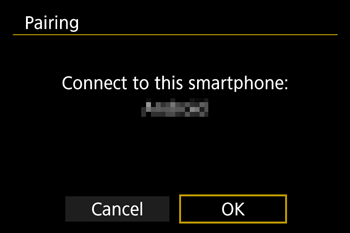
13. A message is displayed indicating that pairing is in progress.
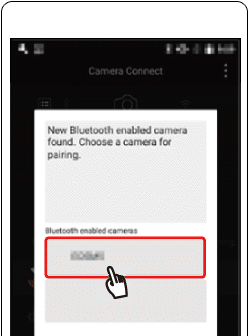
15. After the camera is recognized, a camera selection screen is displayed.
Touch the camera to connect.
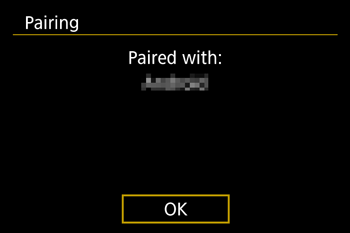
17. Press the button of this screen.
The Pairing between the camera and the smartphone should be complete, and connected.
Caution
Any active Bluetooth connections will be lost if you remove the camera battery pack. The connection will be reestablished when you insert the battery pack and turn on the camera.
Battery life may be shorter when you use the camera after pairing with a smartphone, because power is consumed even when the camera is off.
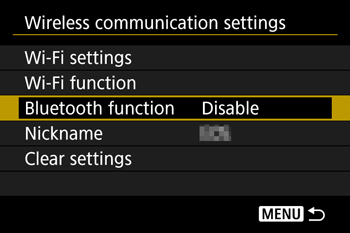
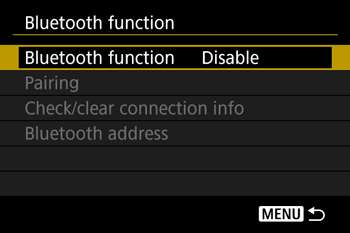
Before bringing the camera to places where the use of electronic devices is restricted, disable active Bluetooth communication (which is used even when the camera is off) by choosing

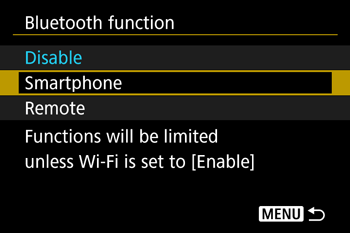
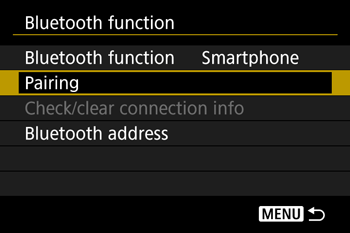
[ Wireless communication settings ] -⋗ [ Bluetooth function ](twice) -⋗ [ Disable ].
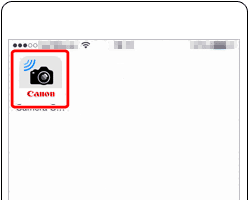
18. Choose [Bluetooth remote controller] in Camera Connect.
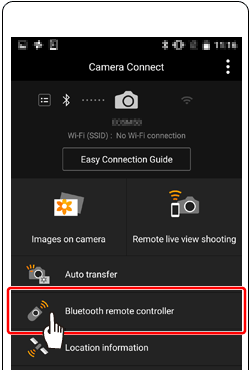
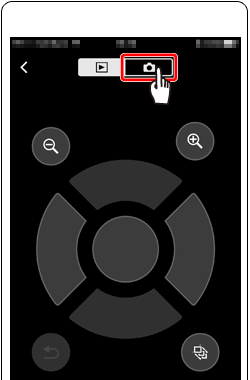
19. The smartphone screen changes to a screen for remote control via Bluetooth.
Choose

.
1. Confirm the smartphone's settings.
Make sure that [Airplane mode] is not set.
Turn [Wi-Fi] to [ON].
Set the [Bluetooth] switch to [ON].
2. Download Camera Connect from the Google Play and install it on the smartphone.
3. Press the button.
Caution
When the [ Nickname ] screen appears, press the button.
To use the nickname displayed, press the
button.
Nicknames are 1 – 8 characters and can be changed later. For more information on using the keyboard, please refer to "On-Screen Keyboard".
Press the
/
buttons to choose [OK] , and then press the
button.
Caution
If the following screen appears, press the / buttons, the screen for step 4 will appear.
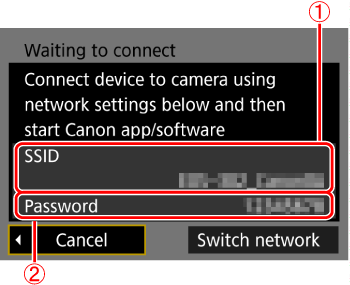
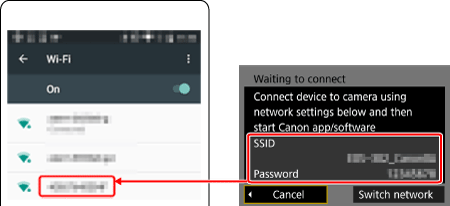
9. Input password from step 7 (  ).
).
10. Once the connection between the camera and the smartphone has been confirmed, press the home button to return to the home screen.
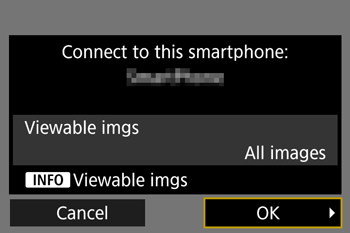
12. After the camera is recognized, a camera selection screen is displayed.
Touch the camera to connect.
14. The camera screen will show [Wi-Fi on].
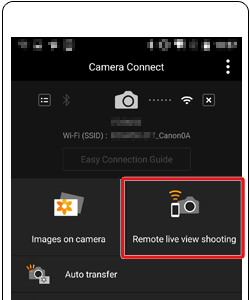
15. Select [Remote live view shooting] from the Camera Connect menu screen.
Caution
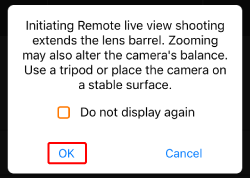
If the [Initiating Live view shooting] window appears, touch [OK].
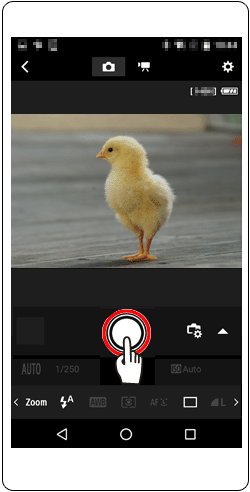
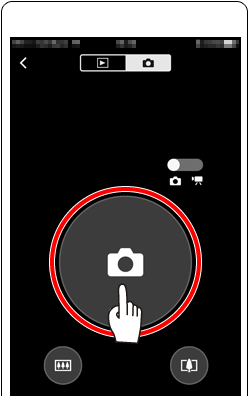
16. Once the camera is ready for remote live view shooting, a live image from the camera is displayed on the smartphone.
Touch the [

] to take a photo.
Caution
To return to the previous screen, press the

button.

 Close
Close
















 ] or [
  ] and press the
 ], press the
  ], press the
 ] and press the