
 Close
Close









Caution
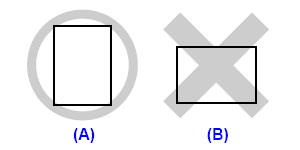
Caution
Loading Paper in the Rear Tray
Load photo paper, or any type of paper other than plain paper, in the Rear Tray.
1.Flatten the four corners of the paper before loading it.
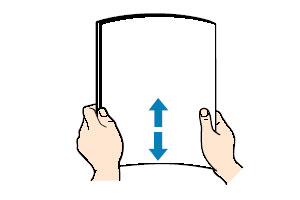
Caution
may cause paper jams.
direction until the paper becomes completely flat. See"Paper is curled"
- When you do not print, remove unused paper from the Rear Tray, put them back into the package, and keep it on a level surface.
- Take out only the necessary number of sheets from the package, just before printing.
2. Prepare to load paper.
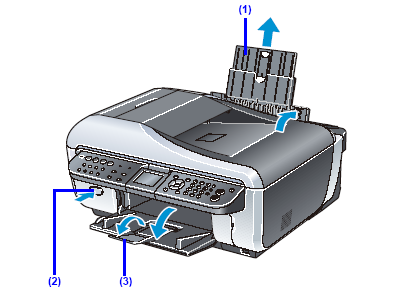
(1) Open the Rear Tray Cover and pull out the Paper Support.
Put your finger in the rounded indent of the Paper Support and pull it out until it stops.
(2) Open the Paper Output Tray.
Press the Open button to open the Paper Output Tray.
(3) Open the Output Tray Extension.
3. Load the paper.
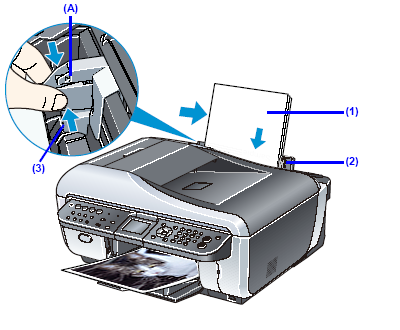
Do not load higher than the Load Limit Mark (A).
(1) Load the paper in the Rear Tray with the print side facing UP.
(2) Align the paper stack against the Cover Guide on the right side of the Paper Support.
Caution
Make sure that the Cover Guide is set upright when you load paper in the Rear Tray.
(3) Pinch the Paper Guide and slide it against the left side of the paper stack.
Caution
Do not slide the Paper Guide too hard. The paper may not be fed properly.
4. Specify the page size and media type settings according to the loaded paper.
When a Media type other than Plain paper is selected, the paper source will switch to the Rear Tray.
Caution
Loading Paper in the Cassette
Load plain paper in the Cassette.
1. Flatten the four corners of the paper before loading it.
2. Pull out the Cassette from the machine.
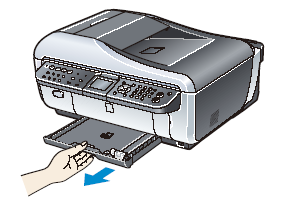
3. Load the paper with the print side facing DOWN.
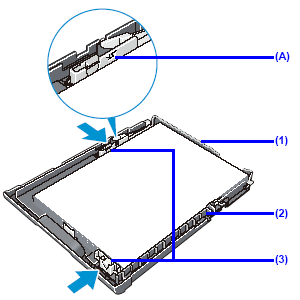
Do not load higher than the Load Limit Mark (A).
(1) Load the paper in the Cassette with the print side facing DOWN and the leading edge to the far side.
(2) Align the paper stack against the right side of the Cassette.
(3) Slide the Paper Guides to fit to the loaded paper stack.
Caution
When loading Legal-sized paper, pull the tab (B) towards you to unlock and fully extend the Cassette.
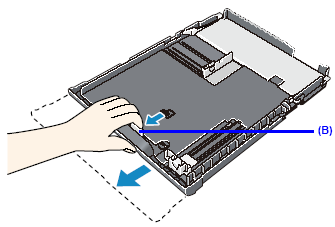
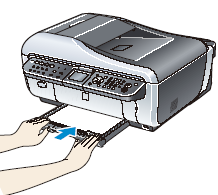
4. Insert the Cassette into the machine.
Push the Cassette all the way into the machine.
Caution
If Legal-sized paper is loaded in the Cassette, the Cassette will protrude slightly.
5. Open the Paper Output Tray.
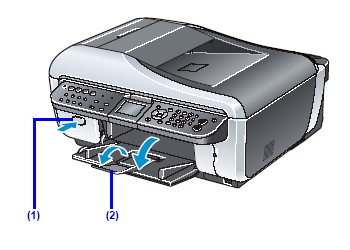
(1) Open the Paper Output Tray.
Press the Open button to open the Paper Output Tray.
(2) Open the Output Tray Extension.
6. Specify the page size and media type settings according to the loaded paper.
When Plain paper is selected for Media type, the paper source will switch to the Cassette.
Caution