
 Close
Close









Do not connect the USB cable yet.
Caution
Windows
Caution
For Windows 7
(1) Remove the USB cable connected to your computer.
(2) Proceed to 1.
For Windows Vista/Windows XP/Windows 2000
The following dialog box may appear.
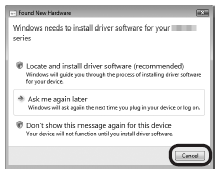
(1) Remove the USB cable connected to your computer.
If the dialog box closes, proceed to 1.
(2) Click Cancel.
(3) Proceed to 1.
If you are using Internet Explorer 7 or later, you can use the Web print software Easy-WebPrint EX. An internet connection is required for installation.
1.
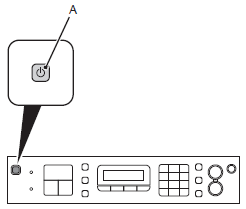
Press the ON button (A) to TURN OFF THE MACHINE.
Operating noise may continue for up to 25 seconds until the machine turns off.
Caution
Do NOT connect the USB cable to the computer and the machine yet. If you have already connected the cable, disconnect it now.
2.
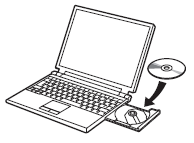
Turn on the computer, then insert the Setup CD-ROM into the CD-ROM drive.
If you are using Windows, the setup program starts automatically.
Caution
If the program does not start automatically, double-click the CD-ROM icon in Computer or My Computer. When the CD-ROM contents appear, double-click MSETUP4.EXE.
Windows 7/Windows Vista -⋗ 3
Windows XP/Windows 2000 -⋗ 4
3.
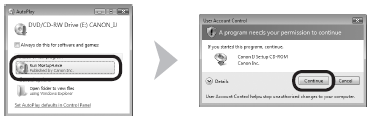
Click Run Msetup4.exe on the AutoPlay screen, then click Continue or Yes on the User Account Control dialog box.
If the User Account Control dialog box reappears in following steps, click Continue or Yes.
4.
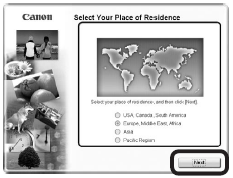
Select your place of residence, then click Next.
Caution
If the Select Language screen appears, select a language, then click Next.
5.
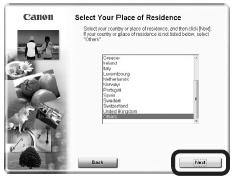
Select a country or region, then click Next.
Caution
Displayed only when Europe, Middle East, Africa or Asia is selected on the screen in 4.
6.
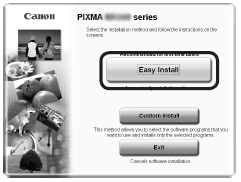
Click Easy Install.
The drivers, application software, and on-screen manuals are installed all together.
Caution
For Windows 7/Windows Vista SP1 or later
7.
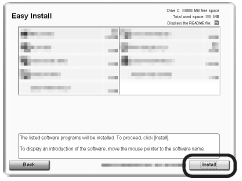
Click Install.
Caution
For Windows
To install Easy-WebPrint EX, you need to connect your computer to the internet at this stage.
(Internet Explorer 7 or later is required.) If an internet connection is not available, it is also possible to install this software later.
8.
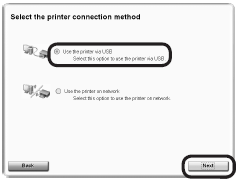
Select Use the printer via USB, then click Next.
Follow any on-screen instructions to proceed with the software installation.
Important Information for the Installation
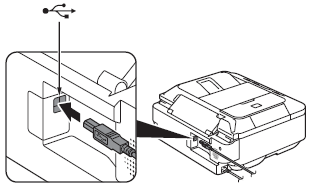
When the Printer Connection screen appears, connect the machine to the computer with the USB cable.
The USB Port is located on the back center of the machine.
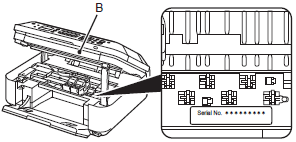
The product serial number is required when registering the product. The serial number is located inside the machine (as shown in the illustration).
Caution
If the power is on, the FINE Cartridge Holder will move when the Scanning Unit (Cover) (B) is opened.
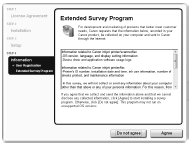
If you can agree to Extended Survey Program, click Agree.
If you click Do not agree, the Extended Survey Program will not be installed. (This has no effect on the machine's functionality.)
9.
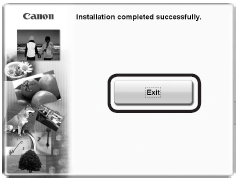
Click Exit to complete the installation.
If Restart is displayed, follow the instruction to restart the computer.
For Macintosh:
It is necessary to restart the computer before scanning using the Operation Panel on the machine for the first time.
Caution
10.
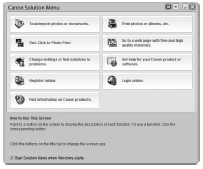
For Windows:
Solution Menu starts automatically.
For Macintosh:

Macintosh
1.
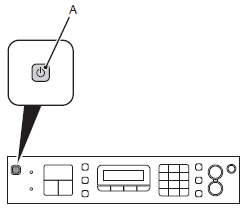
Press the ON button (A) to TURN OFF THE MACHINE.
Operating noise may continue for up to 25 seconds until the machine turns off.
Caution
Do NOT connect the USB cable to the computer and the machine yet. If you have already connected the cable, disconnect it now.
2.
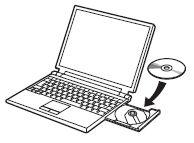
Turn on the computer, then insert the Setup CD-ROM into the CD-ROM drive.
If you are using Windows, the setup program starts automatically.
3.
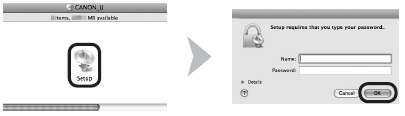


4.
Select your place of residence, then click Next.
Caution
If the Select Language screen appears, select a language, then click Next.
5.
Select a country or region, then click Next.
Caution
Displayed only when Europe, Middle East, Africa or Asia is selected on the screen in 4.
6.
Click Easy Install.
The drivers, application software, and on-screen manuals are installed all together.
Caution
For Windows 7/Windows Vista SP1 or later
7.
Click Install.
Caution
For Windows
To install Easy-WebPrint EX, you need to connect your computer to the internet at this stage.
(Internet Explorer 7 or later is required.) If an internet connection is not available, it is also possible to install this software later.
8.
Select Use the printer via USB, then click Next.
Follow any on-screen instructions to proceed with the software installation.
Important Information for the Installation
When the Printer Connection screen appears, connect the machine to the computer with the USB cable.
The USB Port is located on the back center of the machine.
The product serial number is required when registering the product. The serial number is located inside the machine (as shown in the illustration).
Caution
If the power is on, the FINE Cartridge Holder will move when the Scanning Unit (Cover) (B) is opened.
If you can agree to Extended Survey Program, click Agree.
If you click Do not agree, the Extended Survey Program will not be installed. (This has no effect on the machine's functionality.)
9.
Click Exit to complete the installation.
If Restart is displayed, follow the instruction to restart the computer.
For Macintosh:
It is necessary to restart the computer before scanning using the Operation Panel on the machine for the first time.
Caution
10.
For Windows:
Solution Menu starts automatically.
For Macintosh: