
 Close
Close









Solution
Set up: Install Camera Connect on a smartphoneStep 1: Connect the camera and smartphone (basic setup)
Step 2-A: Connect the camera and smartphone (Connect via NFC)
Step 2-B: Connect the camera and smartphone (Connect wirelessly)
Step 3: View and save images on the smartphone
Operation Reference: Virtual Keyboard Operation
Set up: Install Camera Connect on a smartphone
To communicate with a smartphone, the dedicated smartphone application Camera Connect (free of charge) is necessary.
Caution
Step 1: Connect the camera and smartphone (basic setup)
1. Turn on the camera and the smartphone.
2. Press the camera's ⋖MENU⋗ button to display the menu.
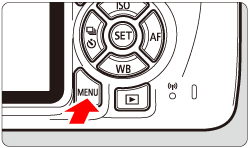
3. Press the ⋖ 


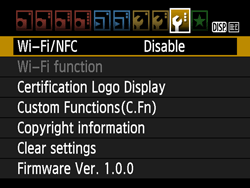
4. Press the ⋖ 


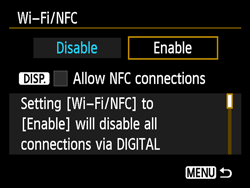
5. Press ⋖
For an NFC-enabled smartphone, press the ⋖ DISP. ⋗ button to add [ 
Caution
Smartphones labeled with the 
* For details on how to use the keyboard, refer to " Operation Reference: Virtual Keyboard Operation ".
Caution
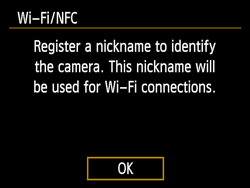
When this setting is selected for the first time, a screen to register a nickname (identification name) is displayed.
When the camera is connected to another device wirelessly, the nickname will be displayed on the device. Be sure to set a nickname as otherwise you cannot set the wireless functions.
Select [OK] and enter a nickname. (You can enter between 1 to 10 characters.)
When you are finished, press the ⋖ MENU ⋗ button.
Select [OK] on the confirmation dialog and press ⋖
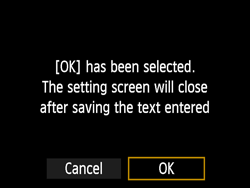
The basic setup is now complete.The steps after this differ depending on the connection method.
Step 2-A: Connect the camera and smartphone (Connect via NFC)
1. Touch a smartphone to the camera.
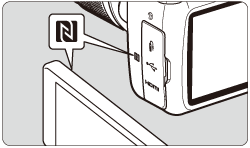
mark on the smartphone to that on the camera. ⋗ button to end the playback.
Camera Connect starts on the smartphone and establishes a connection.
The camera's ⋖ 
When a message indicating the connection is displayed on the camera's LCD monitor, move the smartphone away from the camera.
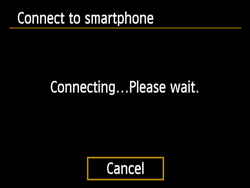
When a connection is established, the screen below will appear on the camera's LCD monitor.*
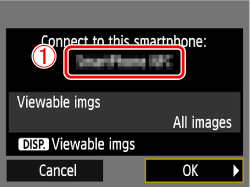

The camera's ⋖
* When connecting to the same smartphone, this screen will not appear again.
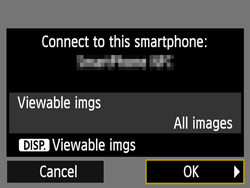
2. Save the connection settings.
Press ⋖
After a message is displayed, the camera's LCD monitor will turn off.
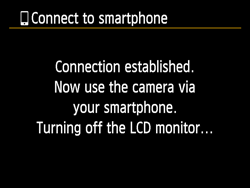
After the camera operation is complete, the main window of Camera Connect will be displayed on the smartphone.
Caution
⋖NFC Function Cautions⋗
mark, then touch again. ].
].Caution
Step 2-B: Connect the camera and smartphone (Connect wirelessly)
1. Under the [
2. Press ⋖ 
3. Press the ⋖
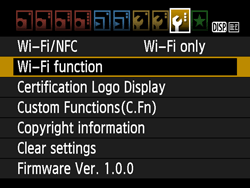
4. Press the ⋖ 
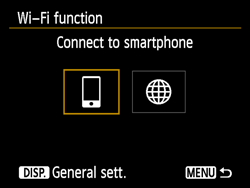
The camera's ⋖
5. Press the ⋖
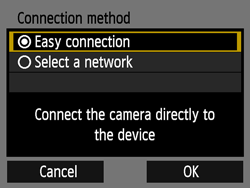
Select [OK] and press ⋖
6. Operate the smartphone and connect it to the camera.
 ) displayed on the camera's LCD monitor.
 ) displayed on the camera's LCD monitor.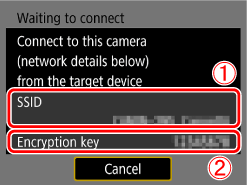
Caution
When connecting by selecting [Easy connection], "_Canon0A" is displayed at the end of the SSID.
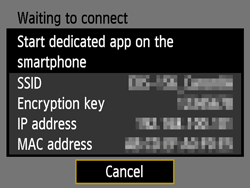
7. When the screen below is displayed, start Camera Connect on the smartphone.
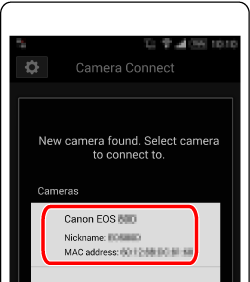
8. Select and touch the camera to connect to from [Cameras] on Camera Connect.
When a connection is established, the screen below will appear on the camera's LCD monitor.
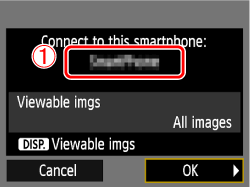
9. Press ⋖
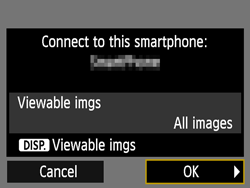
The camera's ⋖
After a message is displayed, the camera's LCD monitor will turn off.
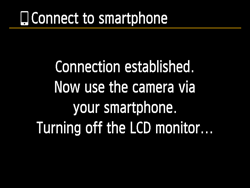
After the camera operation is complete, the main window of Camera Connect will be displayed on the smartphone.
10. Operate the camera using Camera Connect.
Step 3: View and save images on the smartphone
1. On the Camera Connect menu screen on the smartphone, choose [Images on camera].
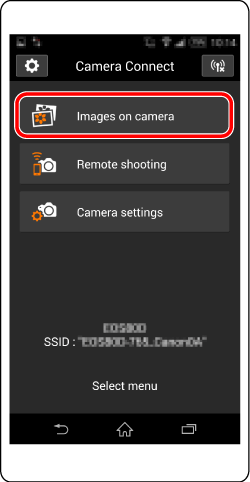
2. Use your smartphone to save images from the camera to the smartphone.
When the camera and smartphone are connected, a list of images in the camera appears in "Camera Connect".Tap the [ 
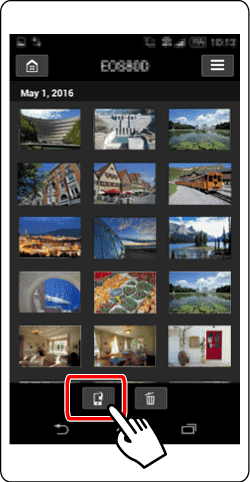
3. When the selection screen appears, select the images you wish to save ( 

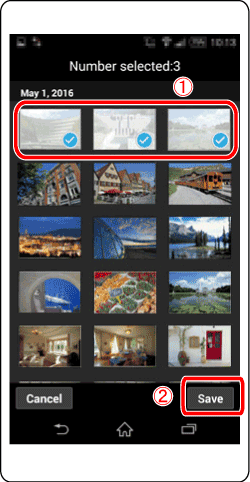
The selected images are saved to the smartphone.
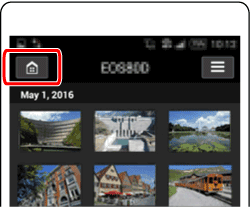
4. When the images have been saved, tap the home button on the top left to return to the menu screen.
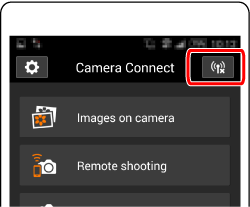
5. To end the connection, tap the [ 
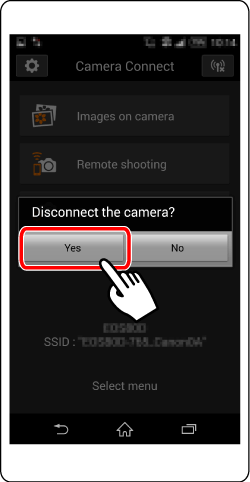
Sending images to a smartphone via wireless LAN is now complete.
* Android™ and Google Play™ are trademarks of Google Inc.
Caution
Caution
 and saved. ⋗ lamp will blink rapidly when images stored in the
camera are being saved to a smartphone.
Operation Reference: Virtual Keyboard Operation
For details on keyboard operation when registering a nickname (identification name) of the camera, refer to the following.
You can change the nickname later on the [General sett.] screen.
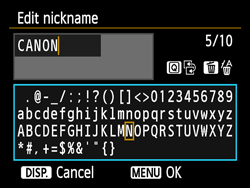
| Changing the entry area | Press the <  > button to toggle between the top and bottom entry areas. > button to toggle between the top and bottom entry areas. |
| Moving the cursor | Press the < > < > keys in the top area to move the cursor. |
| Entering text | In the bottom area, press the <  > cross keys or turn the < > cross keys or turn the <  > dial to select a character, then press < > to enter it. > dial to select a character, then press < > to enter it.You can check how many characters you have entered, and how many more can be entered, by referring to "*/*" on the upper right of the screen. |
| Deleting a character | Press the <  > button to delete one character. > button to delete one character. |
| Finishing the text entry | Press the < MENU > button to confirm what you have entered and exit. If a confirmation dialog is displayed, select [OK] to exit. |
| Canceling the text entry | Press the < DISP. > button to cancel text entry and exit. If a confirmation dialog is displayed, select [OK] to exit. |