
 Close
Close









This section explains the way to confirm the ink status and the procedure to replace ink tanks. When ink runs out or other errors occur, an error message is displayed on the LCD to inform you of the error. See "An Error Message Is Displayed on the LCD".
When printing from your computer, error messages appear on your computer screen as well.
Caution
Be sure to install the ink tanks in the correct order indicated by the label on the Print Head Holder.
The machine will not print if an ink tank is installed in the incorrect position.
With the LCD of this Machine
Make sure that the machine is turned on, then press the COPY, FAX, SCAN, or MEMORY CARD button. The current ink level will be displayed on the LCD for a few seconds.
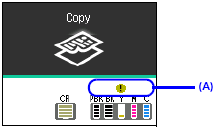
(A) Confirm whether any symbols are displayed here.
 | Color or black ink is low. You can continue printing for a while, but we recommend you to have a new ink tank available. |
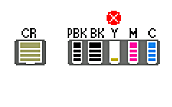 | Color or black ink may have run out. See"An Error Message Is Displayed on the LCD". |
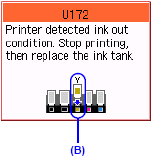 | Machine detected ink out condition. See "An Error Message Is Displayed on the LCD" and take appropriate action. (B) Empty ink tank. |
Caution
The ink status information is also displayed on the screen that appears during printing.
An error message may be displayed on the LCD during printing.
With the Ink Lamps
You can confirm the status of each ink tank by the ink lamps. Open the Scanning Unit (Printer Cover) of the machine to confirm how the ink lamps light or flash.
The ink tank is correctly set and there is enough ink remaining to print.
Flashing slowly (at around 3-second intervals)

Ink is low. You can continue printing for a while, but we recommend you to have a new ink tank available.
Flashing quickly (at around 1-second intervals)

The ink tank is inserted in the wrong position or it is empty. Ensure that the ink tank is in the correct position as directed by the label on the Print Head Holder. If the position is correct and its lamp flashes, it is empty. Replace it with a new one.
The ink tank is not set properly or the function for detecting the remaining ink level is disabled.
If the ink tank is not set properly, press the 
If the function for detecting the remaining ink level is disabled, replace the ink tank with anew one. See "Replacing Ink Tanks".
If the lamps are still off after reinserting the ink tanks, there has been an error and the
machine cannot print. Check the error message displayed on the LCD. See "An Error
Message Is Displayed on the LCD".
Getting the Clear Ink Status Information
Clear ink is used only when printing on plain paper.
When Plain paper (Cassette) is selected for Media type and printing begins when clear ink (PGI-9Clear) is low, a message will be displayed in the LCD.
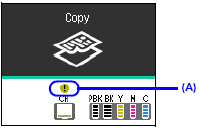
(A) Confirm whether a symbol is displayed here.
 | The clear ink is low. You can continue printing for a while, but we recommend you to have a new ink tank available. |
 | The clear ink tank is empty. See ""The clear ink tank is empty. Replacing the ink tank is recommended." U045" and take appropriate action. |
Caution
The following error message will be displayed on the LCD when the clear ink has run out during printing on plain paper.
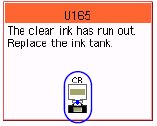 | Refer to "Replacing Ink Tanks" If you continue printing under the clear ink out condition, see ""The clear Ink has run out. Replace the ink tank." U165/U166" and take appropriate action. When the clear ink hasrun out, printing on plain paper from the Cassette is not possible. The fax, which is received under the clear ink out condition, will be stored in memory. |
Caution
It is possible to print on photo paper, or any media type other than plain paper, loaded in the Rear Tray, even if clear ink has run out.