
 Close
Close









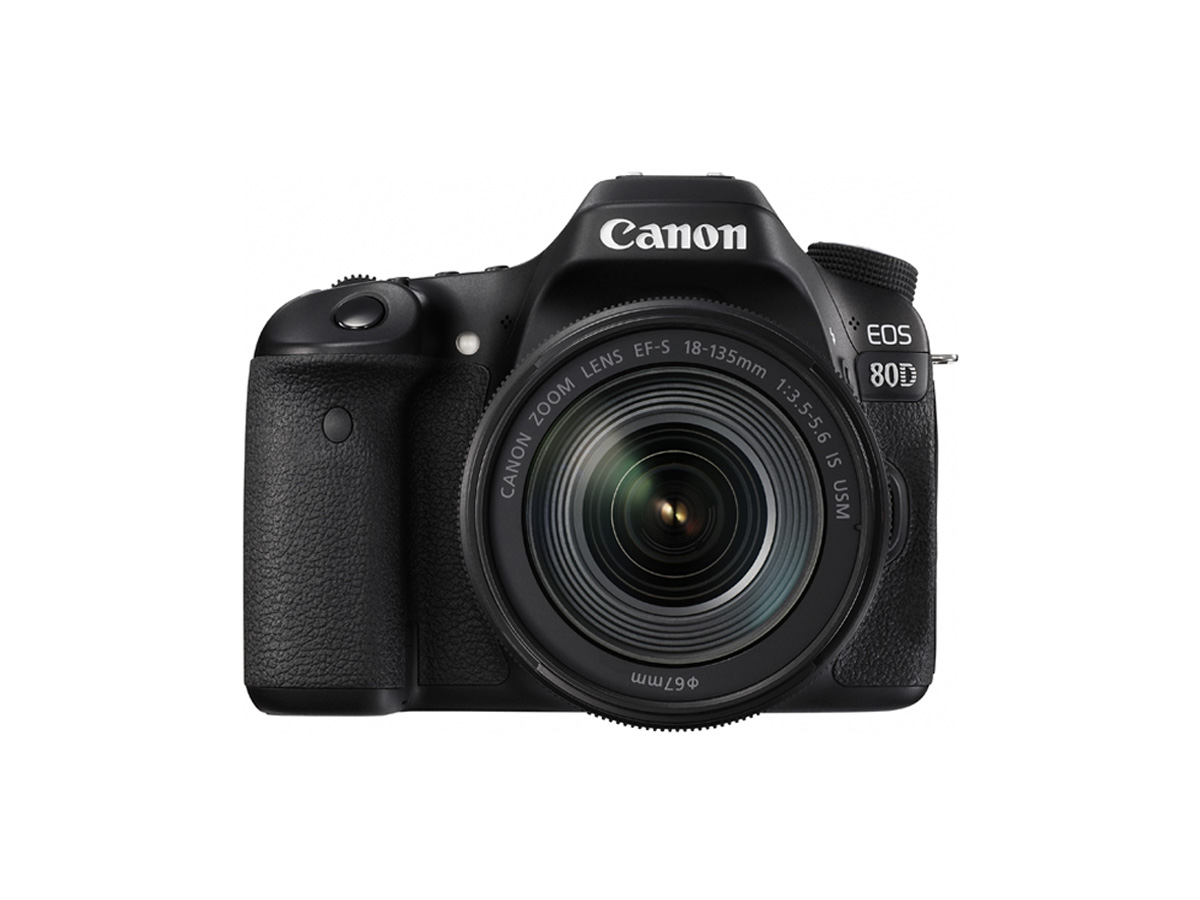
Solution
Step 1: Connect the camera and printer via Wireless LAN (camera access point mode)Step 2: Print
Operation Reference: Virtual Keyboard Operation
You can print images by wirelessly connecting the camera to a printer supporting PictBridge (Wireless LAN).
This article explains how to make a connection using the camera access point. You can use the camera access point mode when no other access points are available, allowing you to print images easily at any time.
Caution
 ⋗, ⋖
⋗, ⋖  ⋗, ⋖
⋗, ⋖  ⋗, ⋖
⋗, ⋖  ⋗, ⋖
⋗, ⋖  ⋗, or ⋖
  ⋗ mode, when HDR shooting is set, or when Multi Shot Noise Reduction is set, the camera cannot be connected to a printer.
Step 1: Connect the camera and printer via Wireless LAN (camera access point mode)
1. Turn on the camera and the printer.
2. Press the camera's ⋖MENU⋗ button to display the menu.
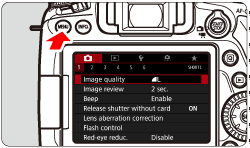
Caution
If the camera's auto power off functions while connected via Wi-Fi, the Wi-Fi connection will be disconnected. Under the [ 
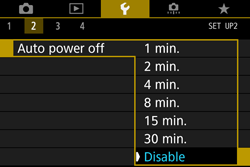
3. Press the ⋖ 


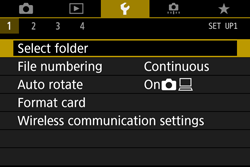
4. Press the ⋖ 


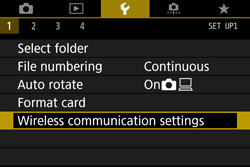
5. Press the ⋖
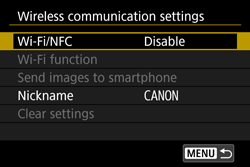
6. Press ⋖
* For details on how to use the keyboard, refer to "Operation Reference: Virtual Keyboard Operation".
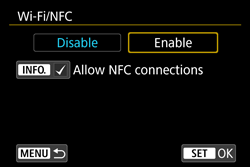
Caution
When this setting is selected for the first time, a screen to register a nickname (identification name) is displayed.
When the camera is connected to another device wirelessly, the nickname will be displayed on the device. Be sure to set a nickname as otherwise you cannot set the wireless functions.
Select [OK] and enter a nickname. (You can enter between 1 to 10 characters.)
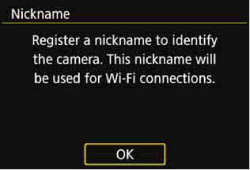
When you are finished, press the ⋖MENU⋗ button.
Select [OK] on the confirmation dialog and press ⋖
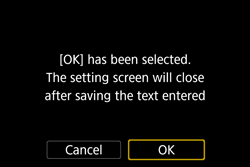
7. Press the ⋖
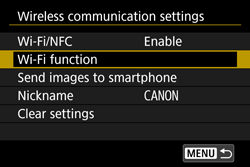
8. Press the ⋖ 
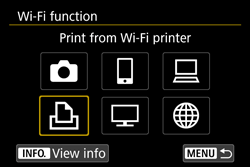
9. Press the ⋖
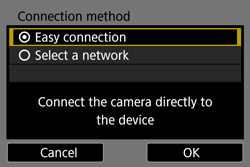
Select [OK] and press ⋖
10. Operate the printer and connect it to the camera.
 ) displayed on the camera's LCD monitor.
 ) displayed on the camera's LCD monitor.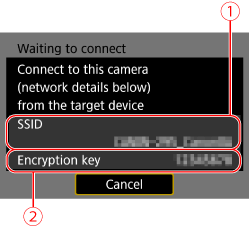
Caution
11. When a list of detected printers is displayed, select the printer to connect to and press ⋖
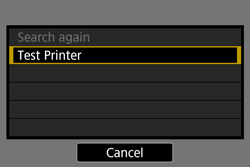
The processing screen is displayed.
When a connection is established, an image on the card is displayed.
The settings for connecting to a printer are now complete.
Step 2: Print
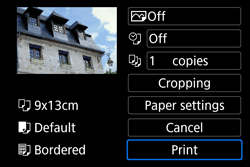
1. Turn the ⋖ 
By pressing the [ 

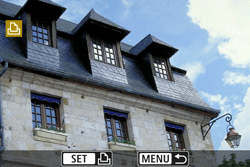
2. Press the ⋖
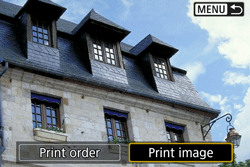
3. Press the ⋖
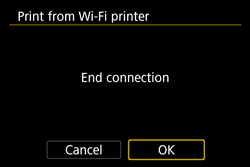
4. Press the ⋖MENU⋗ button to terminate the connection.
A confirmation dialog is displayed. Press ⋖
Caution
Caution
RAW images shot with this camera can also be printed.
Operation Reference: Virtual Keyboard Operation
For details on keyboard operation when registering a nickname (identification name) of the camera, refer to the following.
You can change the nickname later on the [General sett.] screen.
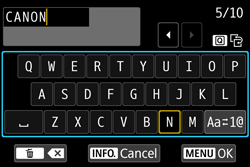
| Changing the entry area | Press the <  > button to toggle between the top and bottom entry areas. > button to toggle between the top and bottom entry areas. |
| Moving the cursor | Press the < > < > keys in the top area to move the cursor. |
| Entering text | In the bottom area, press the < > < > or < > < > keys to select a character, then press < > to enter it. You can check how many characters you have entered, and how many more can be entered, by referring to [*/*] on the upper right of the screen. |
| Changing the entry mode* | Select [  ] at the bottom right of the bottom entry area. Each time you press < >, the entry mode will change as follows: Lower case → Numerals/Symbols 1 → Numerals/Symbols 2 → Upper case. ] at the bottom right of the bottom entry area. Each time you press < >, the entry mode will change as follows: Lower case → Numerals/Symbols 1 → Numerals/Symbols 2 → Upper case.* When [Touch control: Disable] is set, you can enter all characters on one screen. |
| Deleting a character | Press the <  > button to delete one character. > button to delete one character. |
| Finishing the text entry | Press the |
| Canceling the text entry | Press the |