Close
Close









Solution
Registering and Editing via the Operation PanelRegistering and Editing One-Touch Keys via the Remote UI (MF4580dw/MF4570dw Only)
Registering and Editing via the Operation Panel
1. Press [ 
2. Press [ 

(1) If there are destinations registered, press [ 
If you are registering a destination for the first time, proceed to step (2).
(2) Press [ 

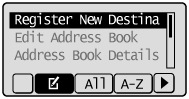

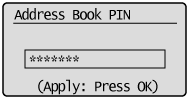
Use the numeric keys to enter the PIN, and then press [OK].
(3) Press [
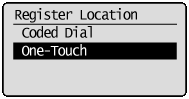
(4) Press [
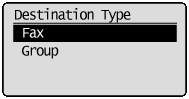
(5) Press [
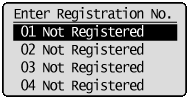
(6) Press [
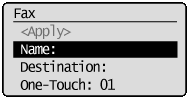
(7) Use the numeric keys to specify ⋖Name⋗.
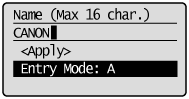
(8) Press [
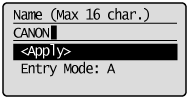
(9) Press [
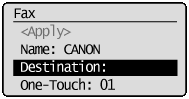
(10) Use the numeric keys to specify ⋖Destination⋗.
Press [OK] to specify ⋖Settings⋗ as needed.
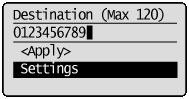
(11) Press [
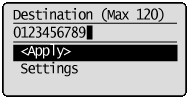
(12) Press [
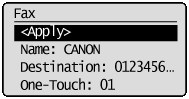
(1) Press [
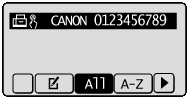
(2) Press [
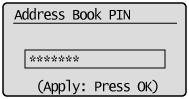
Use the numeric keys to enter the PIN, and then press [OK].
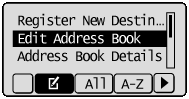
(3) Press [
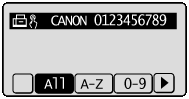
(4) Press [
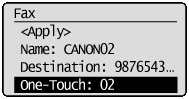
(5) When you finish editing, press [
(6) Press [
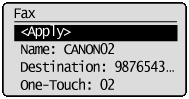
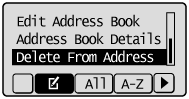
(1) Press [
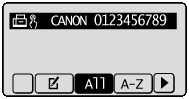
(2) Press [
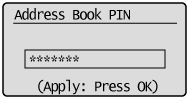
Use the numeric keys to enter the PIN, and then press [OK].
(3) Press [
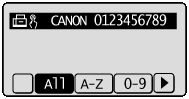
(4) Press [
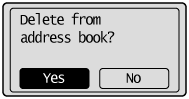
3. Press [ 
Registering and Editing One-Touch Keys via the Remote UI (MF4580dw/MF4570dw Only)
1. Start the Remote UI, and then log on in system manager mode.
For details on the procedures for starting the Remote UI, see the "e-Manual" (HTML manual) in the CD-ROM supplied with the machine.
2. Click [Address] -⋗ [One-Touch].
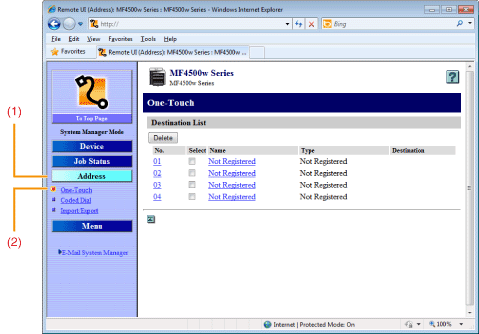
Proceed to Step 3.
(1) Click a number or name.
(2) Click [Edit].
(3) Specify the required settings in the edit screen for destinations, and then click [OK].
(1) Select the check box for which you want to delete the number, and then click [Delete].
3. Click [Not Registered] or the number which is not registered.
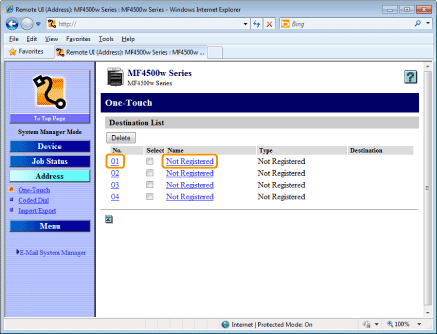
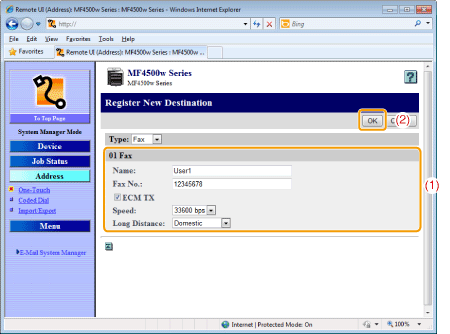
4. Select [Fax] from the drop-down list.
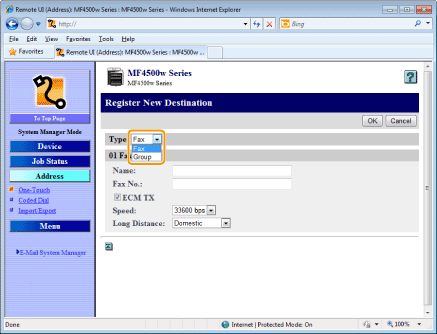
5. Specify the required settings, and then click [OK].