
 Close
Close









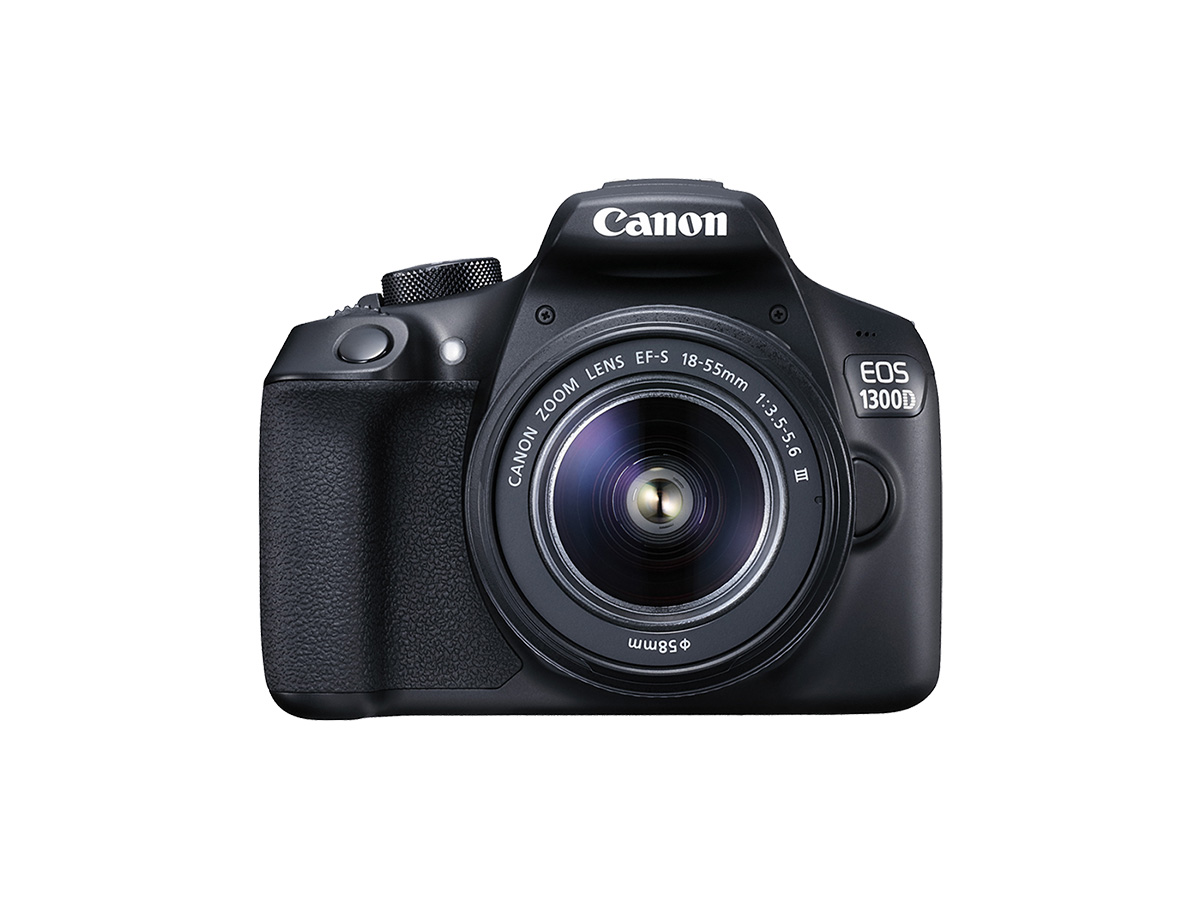
Solution
This article explains how to shoot movies with the default settings.
For details on how to shoot movies when making changes to settings, refer to the related information.
Caution
 " or higher.
Caution

Full HD 1080 indicates compatibility with High-Definition featuring 1080 vertical pixels (scanning lines).
1. Set the camera's power switch to ⋖ON⋗.
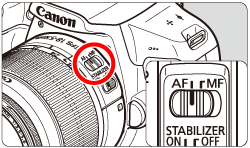
2. Set the lens's focus mode switch to ⋖AF⋗.
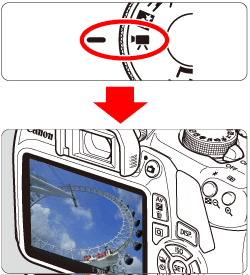
3. Set the mode dial to ⋖ 
The reflex mirror will make a sound, then the image will appear on the LCD monitor.
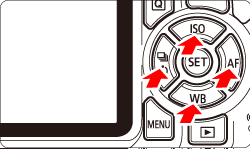
4. When the AF point 

 ⋗ to return the AF point to the center. (If C.Fn-9 is set, hold down the ⋖
  /
/  ⋗ button and press ⋖ ⋗.)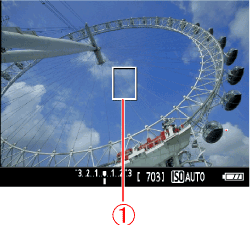
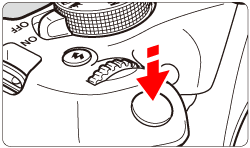
5. Aim the AF point over the subject and press the shutter button halfway.
6. Press the ⋖ 
While the movie is being shot, the [ 
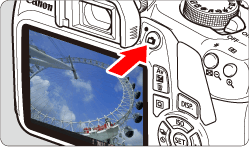
7. Press the ⋖
Caution
Do not hold the camera in the same position for long periods of time.
Even if the camera does not feel too hot, prolonged contact with the same body part may cause skin redness or blistering due to low-temperature contact burns. Using a tripod is recommended for people with circulation problems or very sensitive skin, or when using the camera in very hot places.
Caution
Do not point the camera toward an intense light source, such as the sun or an intense artificial light source. Doing so may damage the image sensor or the camera's internal components.
Caution
Red [ 
] icon will appear. ] icon indicates that movie shooting will soon be terminated automatically. If this happens, you will not be able to shoot again until the camera's internal temperature decreases. Turn off the power and let the camera rest for a while. ] icon to appear earlier. When you are not shooting, always turn off the camera.Caution
 : AF w/ shutter button during
  ] is set to [Enable], pressing the shutter button halfway during movie shooting will perform autofocusing. However, the following may occur.
- Focus may become far off momentarily.
- The brightness of the recorded movie may change.
- The recorded movie may be momentarily still.
- The movie may record the mechanical sound of the lens.
 ⋗ or ⋖
  ⋗ is set and the ISO speed or aperture changes during movie shooting, the white balance may also change.
 ⋗ button.
Caution
Recording and Image Quality
⋗ button. (The movie will be recorded as a new movie file.) The maximum recording time of one movie clip is 29 min. 59 sec. may appear on the right of the screen during movie shooting. It indicates how much data has not yet been written to the card (remaining capacity of the internal buffer memory). The slower the card, the faster the indicator will climb upward.If the indicator becomes full, movie shooting will stop automatically. If the card has a fast writing speed, the indicator will either not appear or the level (if displayed) will hardly go upward. First, shoot a few test movies to see if the card can write fast enough.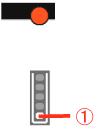
Playback and TV Connection