
 Close
Close









You can copy in the various methods such as enlarging/reducing or copying two original pages onto a single sheet of paper.
Making Copies
This section describes the procedure to copy a document of A4 size on plain paper.
For the operation, see the notes and operation procedure described in the reference page.
You need to prepare:
Originals to copy.
Paper for printing. See Media Types You Can Use .
1. Prepare for copying.
(1) Make sure that the power is turned on.
(2) Press the COPY button to select the copy mode, if other than the copy mode has been selected.
The copy standby screen will appear.
(3) Load paper.
See Loading Paper .
Here we make sure that A4 plain paper is loaded in the Rear Tray.
(4) Open the Paper Output Tray gently.
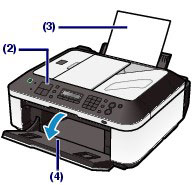
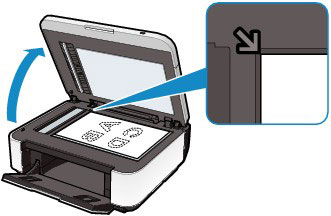
(5) Load an original on the Platen Glass or in the ADF.
To load the original on the Platen Glass, align it with the alignment mark 
Then close the Document Cover gently.
Caution
2. Start copying.
(1) Use the 

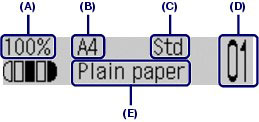
(2) Confirm the page size, media type, and other settings.
Here we confirm that 100% for Enlarge/Reduce (A), A4 for Page size (B), Plain paper for Media type (E), and Std (Standard) for Image quality (C) are specified.
Caution
See Changing the Settings.
(-) or (+) button to select the functions.See Using Various Copy Functions.
(3) Press the Color button for color copying, or the Black button for black & white copying.
The machine starts copying.
Remove the original on the Platen Glass or the Document Output Slot after copying is completed.
Caution
Do not open the Document Cover or move the loaded original until copying is completed.
Caution
You can use the Settings button to change the print settings such as page size, media type, or image quality to print.
Press the Settings button to display the setting items in the following order.
To change the setting, display the desired item and use the
The LCD returns to the copy standby screen when the setting is complete.

Enlarge/Reduce
Specify the enlargement/reduction manner. You can specify the copy scale by selecting the optional number or the page size: 86% A4 -⋗ B5, 115% B5 -⋗ A4, etc. If you do not want to enlarge/reduce the page size, select 100%.
Page size
Select the page size of the paper to print: A4, 8.5"x11" (LTR), etc.
Media type
Select the media type of the paper to print: Plain paper, Plus Glossy II, etc.
Caution
If you do not select the media type correctly, the machine may not print with the proper image quality.
Copy intensity
Specify the intensity when you want to make the darkened/lightened copy. You can also set the intensity to automatically adjust according to the original. When Auto adjust (A) is selected, the ADF is not available.
Image quality
Specify the image quality according to the requirements of the original to copy: High, Standard, and Fast. The available image quality options vary depending on the paper selected for Media type.
Caution
Using Various Copy Functions
You can make various kinds of copies, such as making borderless copies or copying two pages onto a single sheet, by selecting Special copy in the copy mode.
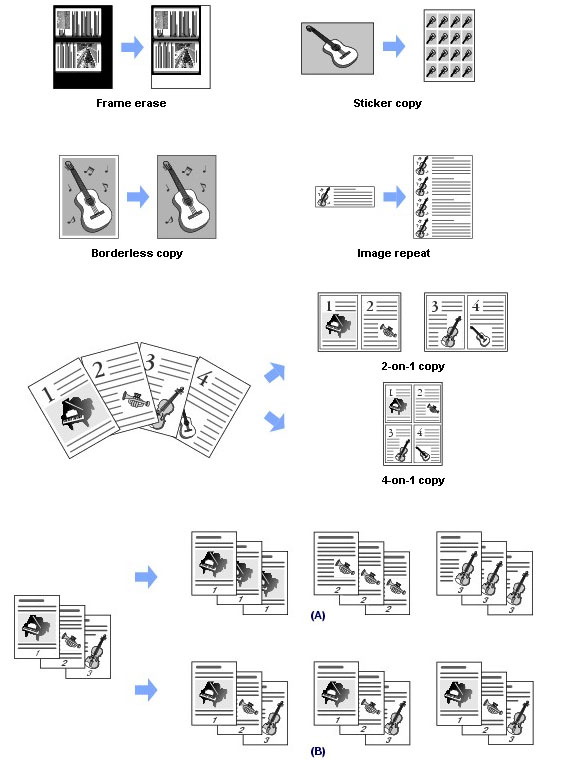
(A) Collated copy is not selected
(B) Collated copy is selected