
 Close
Close









Solution
Viewing images on a standard TV (using an AV Cable)Viewing images on an HD (High-Definition) TV (using an HDMI Cable)
By connecting the camera to a TV, you can view your shots on the larger screen of the TV.
For details on connection or how to switch inputs, refer to the TV manual.
Caution
 ⋗ button, and then select the [Set up] (
 ) tab ⋗ [Video System] to switch to the correct video output setting.
Caution
Viewing images on a standard TV (using an AV Cable)
Connecting the camera to a TV with the AV Cable AVC-DC400 (sold separately) enables you to view your shots on the larger screen of the TV as you control the camera.
1. Turn off the camera and the TV.
2. Connect the AV Cable (sold separately) to the camera’s [A/V OUT / DIGITAL] terminal.
3. Connect the AV Cable (sold separately) to a TV’s video-in terminal and audio-in terminal.
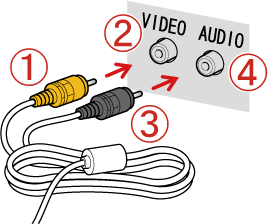


4. Turn on the TV and switch it to video mode.
5. Press the ⋖playback⋗ (
The image will appear on the TV (nothing will appear on the screen of the camera).
When you want to stop playing back images, turn off the camera and the TV first before removing the AV Cable.
Caution
Viewing images on an HD (High-Definition) TV (using an HDMI Cable)
Connecting the camera to an HDTV with the HDMI Cable HTC-100 (sold separately) enables you to view your shots on the larger screen of the TV. Movies shot at a resolution of (

When you connect the camera to an HDMI CEC-compatible TV, you can use the TV's remote control to operate the camera and play back images or view slideshows.
Caution
Caution
Using the HDMI CEC function
1. Press the ⋖
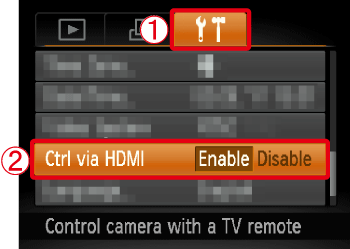
2. Operate the ⋖directional buttons⋗ to select the 

3. Press the ⋖
1. Turn off the camera and the TV.
2. Connect the HDMI Cable [HTC-100] (sold separately) to the camera's [HDMI Terminal].
3. Connect the HDMI Cable [HTC-100] (sold separately) to a high-definition TV's [HDMI Terminal].
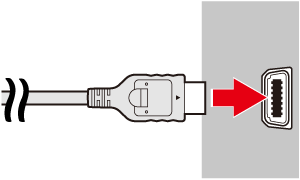
4. Turn on the TV and switch it to HDMI mode.
5. Press the ⋖playback⋗ (
The image will appear on the TV (nothing will appear on the screen of the camera).
Caution
While the HDMI CEC function is in use, operate the camera with the TV’s remote control.
⋖Summary of the Camera Control Panel Displayed on the TV⋗


