
 Close
Close









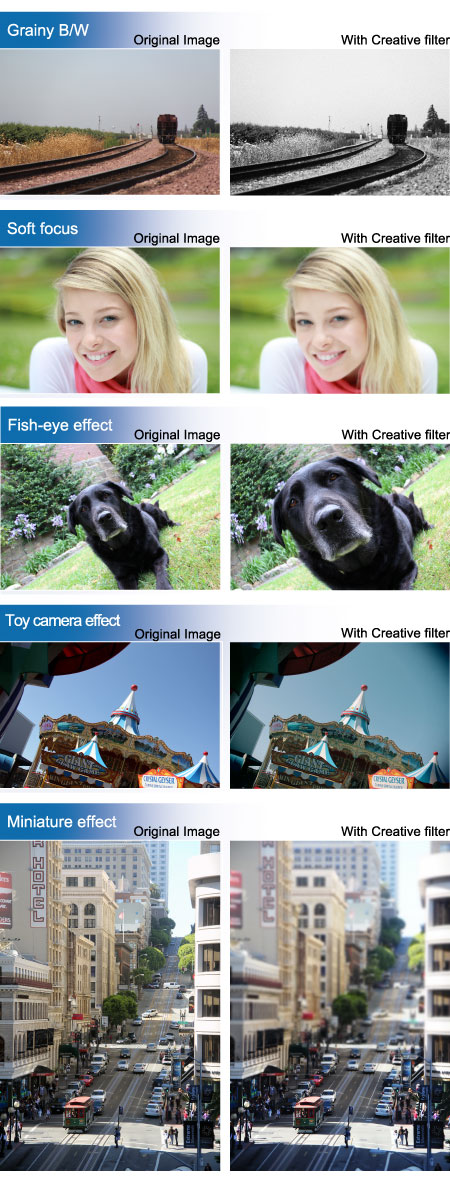
You can apply "Creative filters" to an image and save it as a new image: Toy camera effect, and Miniature effect etc.
Creative Filter Features
| Grainy B/W | Makes the image grainy and black and white. By adjusting the contrast, you can change the black-and-white effect. |
| Gives the image a soft look. By adjusting the blur, you can change the degree of softness. | |
| Gives the effect of a fish-eye lens. The image will have a barrel-type distortion. Depending on the level of this filter effect, the area trimmed along the periphery of the image changes. Also, since this filter effect will magnify the image center, the apparent resolution at the center may degrade depending on the number of recorded pixels. So in step 5, set the filter effect while checking the resulting image. | |
| Toy camera effect | Gives a color cast typical of toy cameras and darkens the image's fours corners. By adjusting the color tone, you can change the color cast. |
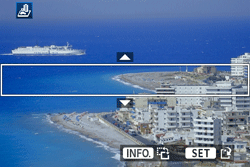
| Miniature effect | Creates a diorama effect. You can change where the image looks sharp. In step 5, you can press the <INFO.> button to change the orientation (vertical/horizontal) of the white frame that shows where you want the image to look sharp. |
How to apply Creative filters to an image
1. Set the power switch to ⋖ON⋗.
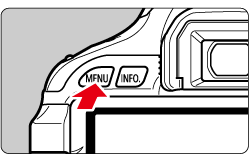
2. Press the ⋖MENU⋗ button to display the menu.
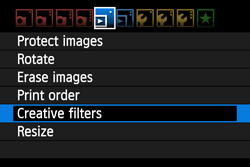
3. Under the [ 

 ⋗ button, you can switch to the index display and select an image.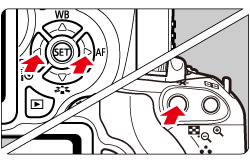
4. When you press the ⋖SET⋗ button, the filters will be displayed.
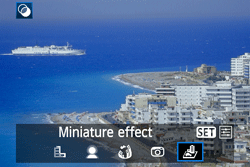
5. Press the ⋖Cross Keys⋗ to adjust the filter effect, then press the ⋖SET⋗ button.
For the miniature effect, press the ⋖Cross Keys⋗ and select the image area (within the white frame) where you want it to look sharp. Then press the ⋖SET⋗ button.
Caution
For the miniature effect, you can press the ⋖INFO.⋗ button to change the orientation (vertical/horizontal) of the white frame that shows where you want the image to look sharp.
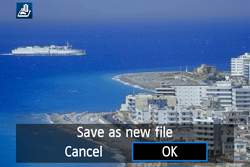
6. Select [OK] to save the image.
Note the destination folder and image file number, then select [OK].
To apply a filter to another image, press the ⋖MENU⋗ button to return to the image selection screen, and then repeat steps 3 to 6.
7. To exit and return to the menu, press the ⋖MENU⋗ button.
Caution
With 