
 Close
Close









Solution
Setting the Video Snapshot Shooting DurationCreating a Video Snapshot Album
Playing an Album
Playing together with Background Music (if adding other music to the video snapshot)
This camera comes equipped with a function for creating short movie clips called "video snapshots."
A video snapshot is a short movie shot in one take that lasts for a few seconds. If you set the length of one scene (approximately 2, 4, or 8 seconds) and start shooting movies, the shooting will end after the set amount of time passes. If you shoot a number of video snapshots in this way, you can record them as a "video snapshot album," a single movie file recorded on the memory card.
A video snapshot album can also be played together with background music.
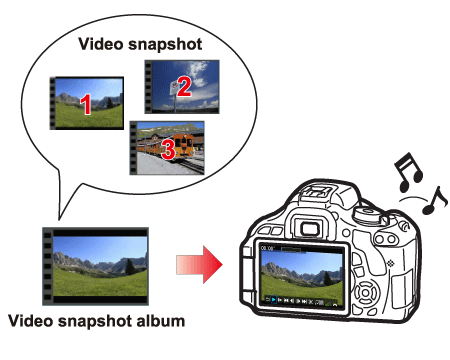
In this section, the operations involved in shooting video snapshots are explained in the steps below.
(1) Setting the Video Snapshot Shooting Duration
(2) Creating a Video Snapshot Album
(3) Playing an Album
(4) Playing together with Background Music (if adding other music to the video snapshot)
Setting the Video Snapshot Shooting Duration
1. Set the power switch to ⋖ON⋗.
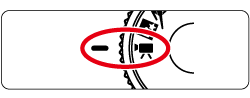
2. Set the mode dial to ⋖ 
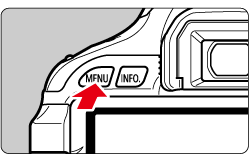
3. Press the ⋖MENU⋗ button to bring up the menu display, then select [Video snapshot] under the [ 
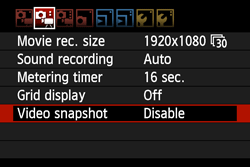
4. Select the [Video snapshot] shooting duration.
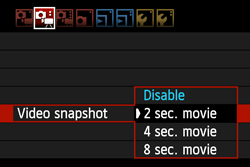
Creating a Video Snapshot Album
5. Press the ⋖ 
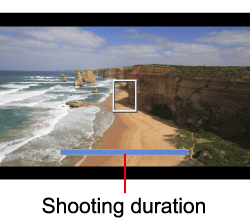
6. Press the ⋖Cross Keys⋗ to select [ 
The movie clip will be saved as the video snapshot album’s first video snapshot.
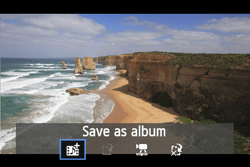
Items that can be selected on this screen
| Option | Description |
| Save as album | The movie clip will be saved as the video snapshot album’s first video snapshot. |
 Playback video snapshot Playback video snapshot | The video snapshot just recorded will be played. For the details on playback operations, see the "[Playback video snapshot] Operations" table in Step 7. |
 Do not save to album Do not save to album | If you want to delete the video snapshot you just recorded and not save it to the album, select [OK]. |
7. Repeat step 5 to shoot the next video snapshot.
 Save as a new album].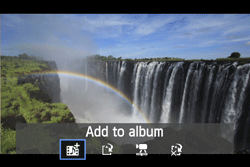
Items that can be selected on this screen
| Option | Description |
| Add to album | The video snapshot just recorded will be added to the album recorded immediately before. |
| Save as a new album | A new video snapshot album is created and the movie clip is saved as the first video snapshot. The new album will be a different file from the previously recorded album. |
| Playback video snapshot | The video snapshot just recorded will be played. For the details on playback operations, see the "[Playback video snapshot] Operations" table below. |
| Delete without saving to album | If you want to delete the video snapshot you just recorded and not save it to the album, select [OK]. |
[Playback video snapshot] Operations
| Item | Playback Description | |
 |
Exit | Returns to the previous screen. |
 |
Play | By pressing the <SET> button, you can play or pause the justrecorded video snapshot. |
 |
First frame | Displays the first scene of the album’s first video snapshot. |
 |
Skip backward* | Each time you press the <SET> button, the video snapshot skips back by a few seconds. |
 |
Previous frame | Each time you press the <SET> button, a single previous frame is displayed. If you hold down the <SET> button, it will rewind the movie. |
 | Next frame | Each time you press the <SET> button, the movie will play frame-byframe. If you hold down the <SET> button, it will fast forward the movie. |
 | Skip forward* | Each time you press the <SET> button, the video snapshot skips forward by a few seconds. |
 |
Displays the last scene of the album’s last video snapshot. | |
 |
Playback position | |
| mm' SS" | Playback time (minutes:seconds) | |
 |
Volume | You can adjust the built-in speaker’s sound volume by turning the <Mai Dial>. |
8. Set [Video snapshot] to [Disable]. Press the ⋖MENU⋗ button to exit the menu and return to normal movie shooting.
Caution
To return to normal movie shooting, be sure to set [Video snapshot] to [Disable].
Caution
Playing an Album
You can play back video snapshot albums that you have created by following the procedures below.
9. Press the ⋖ 
 ] icon displayed on the upper left of the screen indicates that it is a video snapshot album.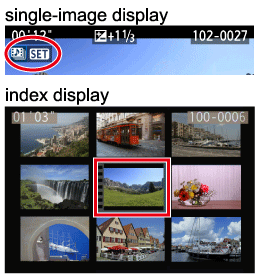
10. On the single-image display, press the ⋖SET⋗ button.
The movie playback panel will appear on the bottom.
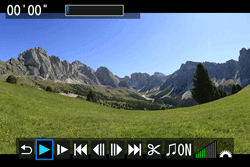
11. Press the ⋖Cross Keys⋗ to select [

Playing together with Background Music (if adding other music to the video snapshot)
To add background music to your video snapshots, follow the steps below.
These steps are not necessary when using the music recorded at the same time that the video snapshots were shot.
Caution
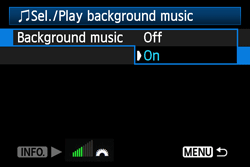
12. When you have reached Step 10 above, press the ⋖Cross Keys⋗ to select the background music item, and then press the ⋖SET⋗ button.

13. Set [Background music] to [On], then press the ⋖SET⋗ button.
14. Press the ⋖Cross Keys⋗ to select the desired background music then press the ⋖SET⋗ button.
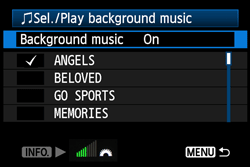
15. After selecting the setting, press the ⋖MENU⋗ button.