
 Close
Close





Solution
Viewing images on a standard TV (using a Stereo AV Cable)Viewing images on an HD (High-Definition) TV (using an HDMI Cable)
By connecting the camera to a TV, you can view your shots on the larger screen of the TV.
For details on connection or how to switch inputs, refer to the TV manual.
Caution
 ⋗ button and choose [Video System] on the (
 ) tab.
 Caution
It is not possible to connect the included interface cable or an optional stereo AV cable at the same time as an HDMI Cable HTC-100. Forcing the cables into the camera at the same time may damage the camera or cables.
It is not possible to connect the USB cable or an optional stereo AV cable at the same time as an HDMI Cable HTC-100. Forcing the cables into the camera at the same time may damage the camera or cables.
Viewing images on a standard TV (using a Stereo AV Cable)
By using the Stereo AV Cable [AVC-DC400ST] (sold separately), you can connect the camera to a TV to view the captured images.
1. Turn off the camera and the TV.
2. Connect the optional Stereo AV Cable to the camera’s [A/V OUT / DIGITAL] terminal.
3. Connect the optional Stereo AV Cable to the TV’s video-in terminal and audio-in terminal.
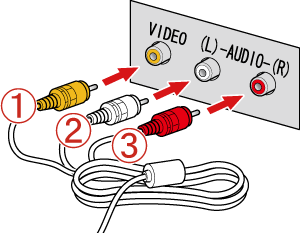


4. Turn on the TV and switch it to video mode.
5. Press the ⋖Playback⋗ (
The image will appear on the TV (nothing will appear on the screen of the camera).
When you want to stop playing back images, turn off the camera and the TV first before removing the optional Stereo AV Cable.
Caution
When the camera and TV are connected, you can also shoot while previewing shots on the larger screen of the TV. To shoot, follow the same steps as when using the camera screen. AF-Point Zoom and MF-Point Zoom are not available.
Viewing images on an HD (High-Definition) TV (using an HDMI Cable)
Connecting the camera to an HDTV with the HDMI Cable HTC-100 (sold
separately) enables you to view your shots on the larger screen of the TV. Movies shot at a resolution of [ 

Connecting the camera to an HDMI CEC-compatible TV enables playback using the TV remote control.
Caution
Caution
Using the HDMI CEC function
1. Press the ⋖
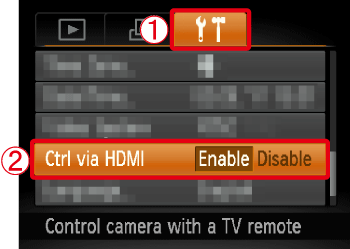
2. Press the ⋖


3. Press the ⋖
1. Turn off the camera and the TV
2. Connect the optional HDMI Cable to the camera's [HDMI Terminal].
3. Connect the optional HDMI Cable to the high-definition TV's [HDMI Terminal].
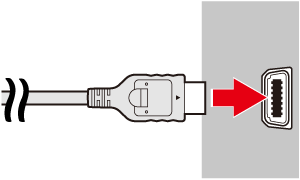
4. Turn on the TV and switch it to HDMI mode.
5. Press the ⋖Playback⋗ (
The image will appear on the TV (nothing will appear on the screen of the camera).
Caution
While the HDMI CEC function is in use, operate the camera with the TV’s remote control.
⋗⋖⋗ buttons to choose an image.⋖Summary of the Camera Control Panel Displayed on the TV⋗


⋗ button on the camera will switch control to the camera itself, which will prevent remote control until you return to single-image display.