
 Close
Close





Issue
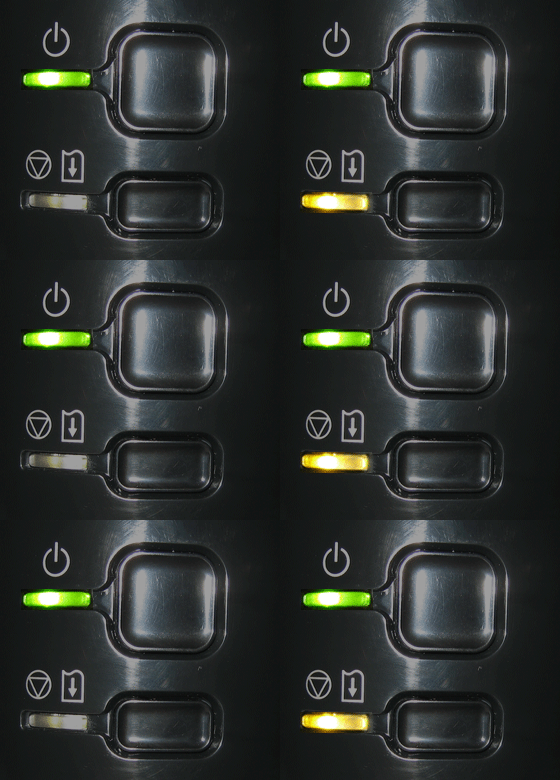
When a printer error occurs, the Alarm lamp flashes orange as shown below. The number of flashes indicates the type of error that has occurred. Count the flashes and take the appropriate action to correct the error.
Caution
POWER Lamp Flashes Green and Alarm Lamp Flashes Orange Alternately
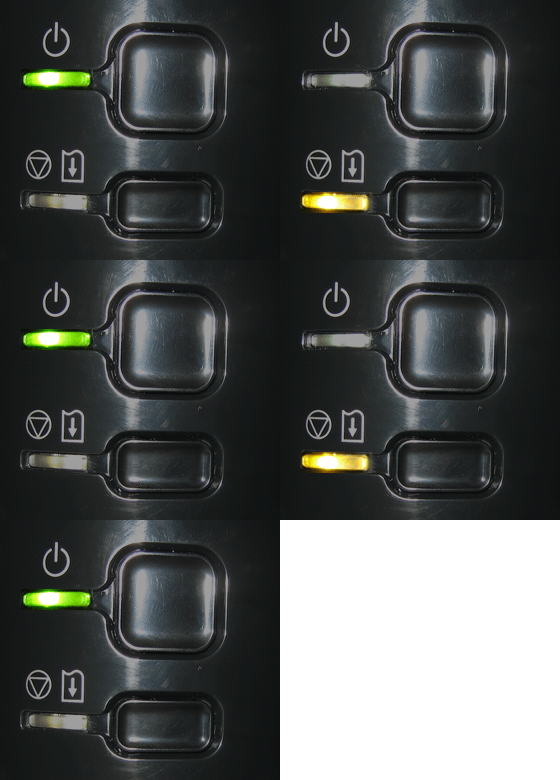
A printer problem has occurred.
Disconnect the printer cable from the printer, turn the printer off, and then unplug the printer from the power supply.
Plug the printer back in and turn the printer back on.
⋖Important⋗
When a message regarding the protective material appears on the computer screen, it is possible that the protective material for the print head holder remains attached. Turn the printer off, then check the inside of the printer. If the protective material remains attached, remove it and turn the printer back on.
-⋗ [ 5100/5101 (The power lamp and the error lamp alternately blink twice.) Printer error has occurred. ]
If the problem is not resolved, contact the service center.
Cause and solution
Two flashes: Printer is out of paper / Paper does not feed
Reload paper in the rear tray or cassette and press the RESUME/CANCEL button on the printer.
When printing on printable discs (BD/DVD/CD, etc.), use the disc tray supplied with this printer ("G" is on the upper side). Place a printable disc on the disc tray, attach the disc tray to the printer, then press the RESUME/CANCEL button.
-⋗ [ Printing a Disc Label ]
Cause and solution
Three flashes:Paper Output Tray is closed/Paper jam
If the Paper Output Tray is closed, open it. The printer resumes printing.
If opening the Paper Output Tray does not resolve the problem, or if the tray was open to begin with, the paper may be jammed. Remove the jammed paper, reload paper properly in the printer, then press the RESUME/CANCEL button on the printer.
Cause and solution
Four flashes:The ink tank is not installed./Ink tank is not installed properly./Ink may have run out.
Install the ink tank.
Install an appropriate ink tank.
Replacing the ink tank is recommended.
If printing is in progress and you want to continue printing, press the printer's RESUME/CANCEL button with the ink tank installed. Then printing can continue. Replacing the ink tank is recommended after the printing. The printer may be damaged if printing is continued under the ink out condition.
-⋗ [ Replacing an Ink Tank ]
Caution
If multiple ink lamps are flashing, refer to [ Checking the Ink Status ] and confirm the status of each ink tank.
Cause and solution
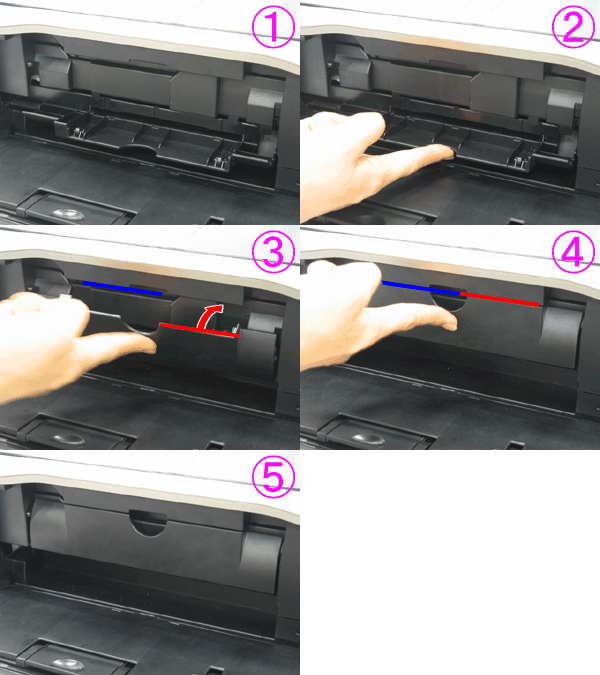
Six flashes:The inner cover (the cover of the disc tray) is opened or closed.
When you start printing on paper, close the Inner Cover, then press the RESUME/CANCEL button on the printer.
Cause and solution
Seven Flashes:Ink tank is not installed in the correct position
Confirm that the ink tanks are installed in the appropriate positions.
When you need to replace an ink tank, follow the procedure below.
Caution
Handling ink
Caution
Color ink may be consumed even when printing a black-and-white document or when black-and-white printing is specified.
Every ink is also consumed in the standard cleaning and deep cleaning of the print head, which may be necessary to maintain the performance of the printer. When an ink tank is out of ink, replace it immediately with a new one.
1. Make sure that the power is turned on, and open the paper output tray gently.
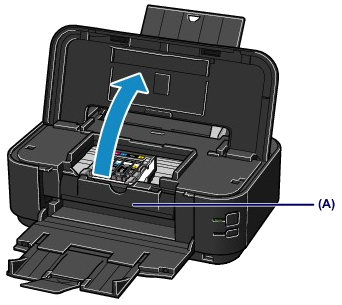
2. Open the top cover.
The print head holder moves to the replacement position.
Caution
Do not hold the print head holder to stop or move it forcibly. Do not touch the print head holder until it stops completely.
Caution
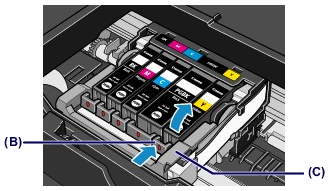
3. Remove the ink tank with the lamp flashing fast.
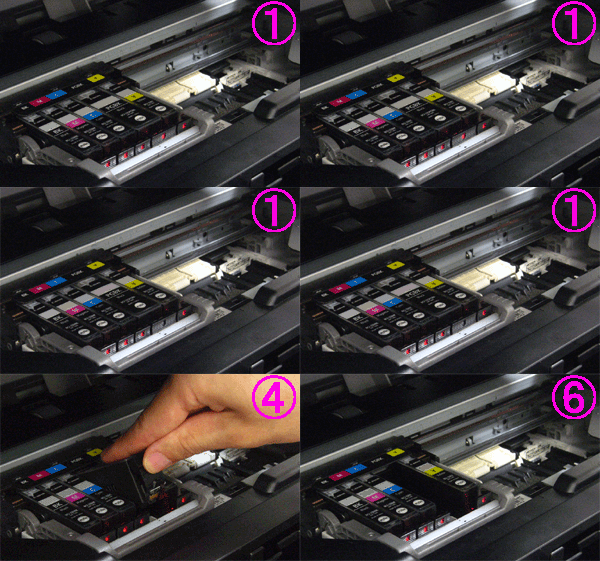
Push the tab (B) and lift the ink tank to remove.
Do not touch the print head lock lever (C).
Caution
Caution
4. Prepare a new ink tank.
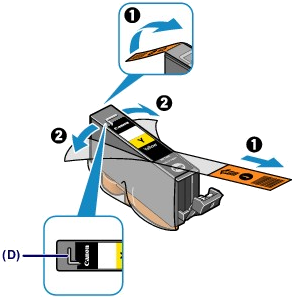
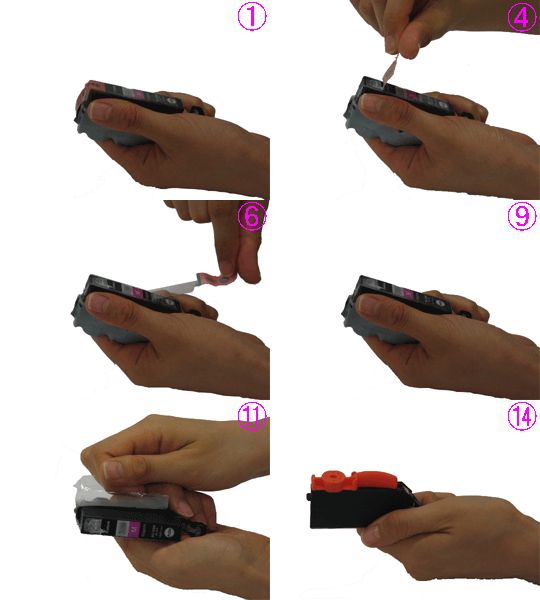
(1) Take a new ink tank out of its package, remove the orange tape (

Caution
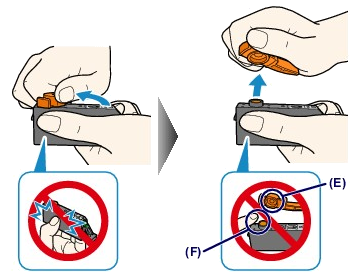
(2) Hold the ink tank with the orange protective cap (E) pointing up while being careful not to block the L-shape air hole (D).
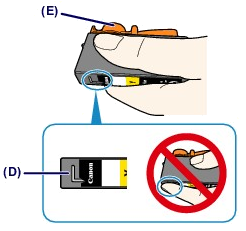
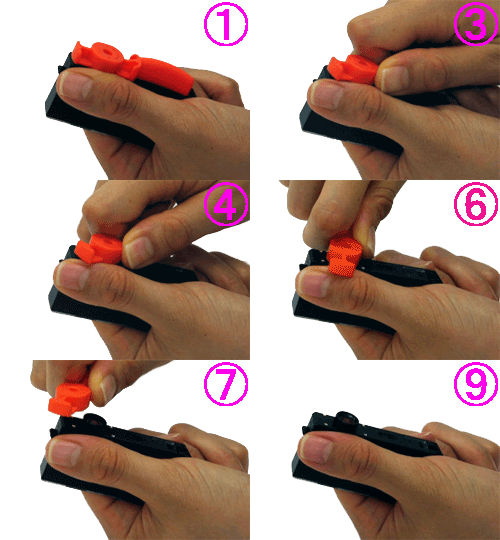
(3) Slowly twist the orange protective cap (E) 90 degrees horizontally to remove it off.
Caution
5. Install the new ink tank.
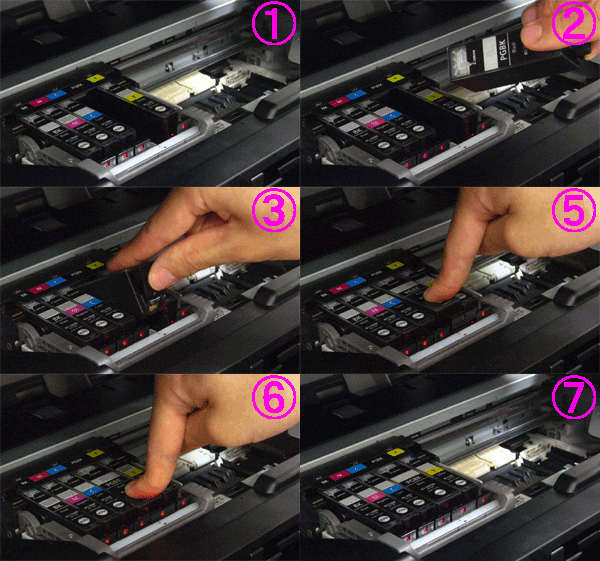
(1) Insert the front end of the ink tank into the print head at a slant.
Make sure that the position of the ink tank matches the label.
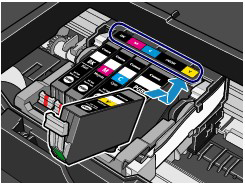
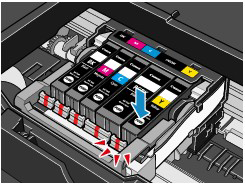
(2) Press the mark 
Make sure that the ink lamp lights up red.
Caution
6. Close the top cover.
Caution
-⋗ [ Alarm Lamp Flashes Orange ]
-⋗ [ Aligning the Print Head ]
Cause and solution
Eight flashes:Ink absorber is almost full
The ink absorber is almost full.
Press the printer's RESUME/CANCEL button to continue printing. Contact the service center.
Cause and solution
Nine flashes:The printer has not received a response from the digital camera. The digital camera or digital video camcorder connected is not compatible with this printer
Cause and solution
Ten flashes:Cannot perform duplex printing
The size of paper may not be compatible with automatic duplex printing. The sizes of media suitable for auto duplex printing are A4, Letter, A5, and B5. Make sure that the size of the paper loaded in the printer is correct. Pressing the RESUME/CANCEL button will eject the paper and restart printing from the front side of the next paper. The reverse side of the ejected sheet will not be printed.
Cause and solution
Eleven flashes:Automatic Print Head Alignment failed
Press the RESUME/CANCEL button to dismiss the error, and print the nozzle check pattern to check the status of the print head.
-⋗ [ Printing the Nozzle Check Pattern ]
Press the RESUME/CANCEL button to dismiss the error, then load one sheet of A4/Letter-sized Canon Matte Photo Paper MP-101 with the printing side (whiter side) facing UP in the rear tray.
For Automatic Print Head Alignment, always load paper in the rear tray.
Press the RESUME/CANCEL button to dismiss the error, and then adjust your operating environment and/or the position of the printer so that the paper output slot is not exposed directly to strong light.
After carrying out the above measures, if the problem continues after aligning the print head again, press the RESUME/CANCEL button to dismiss the error, and then perform Manual Print Head Alignment.
Aligning the Print Head
If printed ruled lines are misaligned or print results are otherwise unsatisfactory, adjust the print head position.
Caution
Refer to [ Aligning the Print Head Position from Your Computer ] within this webpage.
-⋗ [ Replacing an Ink Tank ]
Refer to [ Aligning the Print Head Position Manually from Your Computer ] within this webpage.
You need to prepare: a sheet of A4 or Letter-sized Matte Photo Paper MP-101
1. Make sure that the power is turned on.
2. Load a sheet of supplied paper or A4 or Letter-sized Matte Photo Paper MP-101 in the rear tray.
Load the paper with the print side (whiter side) facing you in the rear tray.
Caution
You cannot use the cassette to align the print head automatically. Be sure to load paper in the rear tray.
3. Open the paper output tray gently, and extend the output tray extension to open.
Caution
If the inner cover is open, close it.
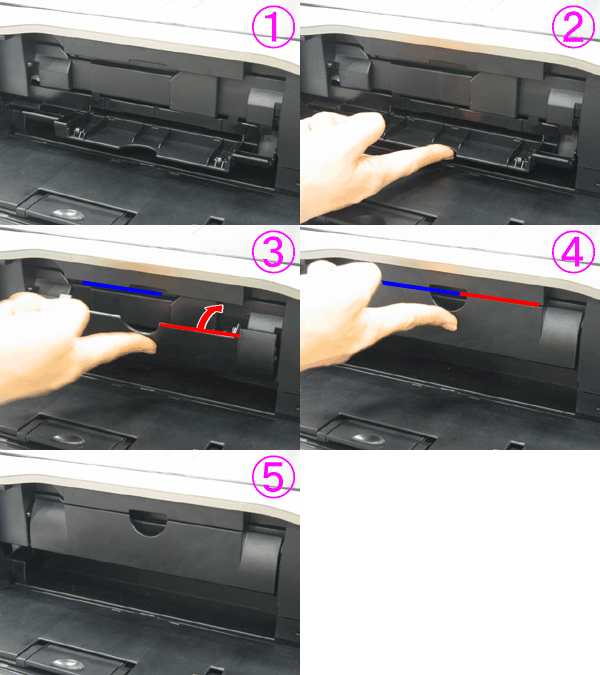
4. Hold down the RESUME/CANCEL button until the POWER lamp flashes green four times, then release it immediately.
The print head alignment sheet will be printed and the printer will adjust the print head position automatically.
Do not perform any other operations until the printer completes the printing of the print head alignment sheet. This takes about 5 minutes.
Caution
-⋗ "Eleven flashes:" in [ Alarm Lamp Flashes Orange ]
Refer to [ Aligning the Print Head Position Manually from Your Computer ] within this webpage.
Aligning the Print Head Position from Your Computer
This printer supports two head alignment methods: automatic head alignment and manual head alignment. Normally, the printer is set for automatic head alignment.
If the printing results of automatic print head alignment are not satisfactory, refer to [ Aligning the Print Head Position Manually from Your Computer ] within this webpage, and perform manual head alignment.
The procedure for performing automatic print head alignment is as follows:
Caution

1. Open the printer driver setup window
2. Click Print Head Alignment on the Maintenance tab
The Start Print Head Alignment dialog box opens.
3. Load paper in the printer
Load one sheet of A4 size or Letter size Matte Photo Paper (MP-101) into the rear tray.
Caution
4. Execute head alignment
Make sure that the printer is on and click Align Print Head.
Follow the instruction in the message.
Caution
Do not open the top cover while printing is in progress.
Caution

1. Select Test Print from the pop-up menu on the Canon IJ Printer Utility
2. Click the Print Head Alignment icon
A message is displayed.
3. Load paper in the printer
Load one sheet of A4 size or Letter size Matte Photo Paper (MP-101) into the rear tray.
Caution
4. Execute head alignment
Make sure that the printer is on and click Align Print Head.
Follow the instruction in the message.
Caution
Do not open the top cover while printing is in progress.
Caution
Aligning the Print Head Position Manually from Your Computer
Print head alignment corrects the installation positions of the print head and improves deviated colors and lines.
This printer supports two head alignment methods: automatic head alignment and manual head alignment. Normally, the printer is set for automatic head alignment.
If the printing results of automatic print head alignment are not satisfactory, perform manual head alignment.
The procedure for performing manual print head alignment is as follows:
Caution

1. Open the printer driver setup window
2. Click Custom Settings on the Maintenance tab
The Custom Settings dialog box opens.
3. Switch head alignment to manual
Check the Align heads manually check box.
Caution
If the printer is off or bi-directional communication is disabled, a message may appear because the computer cannot collect the printer status.
If this happens, click OK to display the most recent settings specified on your computer.
4. Apply the settings
Click OK and when the confirmation message appears, click OK.
5. Click Print Head Alignment on the Maintenance tab
The Start Print Head Alignment dialog box opens.
6. Load paper in the printer
Load three sheets of A4 size or Letter size plain paper into the cassette.
7. Execute head alignment
Make sure that the printer is on and click Align Print Head.
Follow the instruction in the message.
8. Check the printed pattern
Enter the numbers of the patterns with the least amount of streaks in the associated boxes.
Even if the patterns with the least amount of streaks are clicked in the preview window, their numbers are automatically entered in the associated boxes.
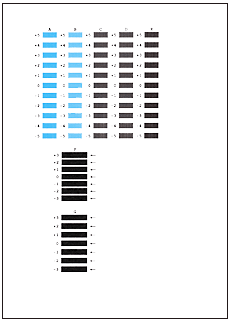
When you have entered all the necessary values, click OK.
Caution
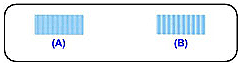
(A) Less noticeable vertical white streaks
(B) More noticeable vertical white streaks
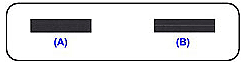
(A) Less noticeable horizontal white streaks
(B) More noticeable horizontal white streaks
9. Confirm the displayed message and click OK
The second pattern is printed.
Caution
Do not open the top cover while printing is in progress.
10. Check the printed pattern
Enter the numbers of the patterns with the least amount of streaks in the associated boxes.
Even if the patterns with the least amount of streaks are clicked in the preview window, their numbers are automatically entered in the associated boxes.
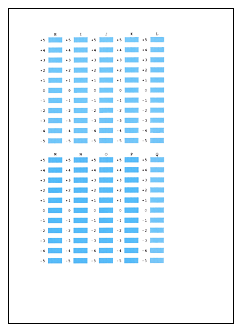
When you have entered all the necessary values, click OK.
Caution
If it is difficult to pick the best pattern, pick the setting that produces the least noticeable vertical white streaks.
(A) Less noticeable vertical white streaks
(B) More noticeable vertical white streaks
11. Confirm the displayed message and click OK
The third pattern is printed.
Caution
Do not open the top cover while printing is in progress.
12. Check the printed pattern
Enter the numbers of the patterns with the least noticeable horizontal stripes in the associated boxes.
Even if the patterns with the least noticeable horizontal stripes are clicked in the preview window, their numbers are automatically entered in the associated boxes.
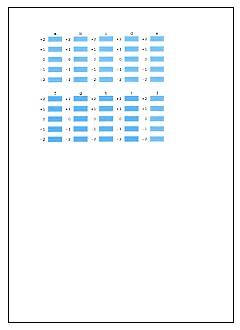
When you have entered all the necessary values, click OK.
Caution
If it is difficult to pick the best pattern, pick the setting that produces the least noticeable horizontal white stripes.
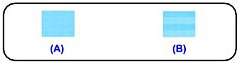
(A) Less noticeable horizontal white stripes
(B) More noticeable horizontal white stripes
Caution
To print and check the current setting, open the Start Print Head Alignment dialog box, and click Print Alignment Value.

1. Select Custom Settings from the pop-up menu on the Canon IJ Printer Utility
2. Switch head alignment to manual
Check the Align heads manually check box.
3. Apply the settings
Click Apply and when the confirmation message appears, click OK.
4. Select Test Print from the pop-up menu on the Canon IJ Printer Utility
5. Click the Print Head Alignment icon
A message is displayed.
6. Load paper in the printer
Load three sheets of A4 size or Letter size plain paper into the cassette.
7. Execute head alignment
Make sure that the printer is on and click Align Print Head.
Follow the instruction in the message.
8. Check the printed pattern
Enter the numbers of the patterns with the least amount of streaks in the associated boxes, and click OK.
Caution
(A) Less noticeable vertical white streaks
(B) More noticeable vertical white streaks
(A) Less noticeable horizontal white streaks
(B) More noticeable horizontal white streaks
9. Confirm the displayed message and click OK
The second pattern is printed.
Caution
Do not open the top cover while printing is in progress.
10. Check the printed pattern
Enter the numbers of the patterns with the least amount of streaks in the associated boxes, and click OK.
Caution
If it is difficult to pick the best pattern, pick the setting that produces the least noticeable vertical white streaks.
(A) Less noticeable vertical white streaks
(B) More noticeable vertical white streaks
11. Confirm the displayed message and click OK
The third pattern is printed.
Caution
Do not open the top cover while printing is in progress.
12. Check the printed pattern
Enter the numbers of the patterns with the least noticeable horizontal stripes in the associated boxes, and click OK.
Caution
If it is difficult to pick the best pattern, pick the setting that produces the least noticeable horizontal white stripes.
(A) Less noticeable horizontal white stripes
(B) More noticeable horizontal white stripes
Caution
After head alignment is completed, you can print and check the current setting. To do so, click the Print Head Alignment icon and when the message is displayed, click Print Alignment Value.
Cause and solution
Twelve flashes: Cannot print the contents on CREATIVE PARK PREMIUM
You cannot print the contents on CREATIVE PARK PREMIUM.
When you print the contents on CREATIVE PARK PREMIUM, confirm the message on the computer screen, make sure that genuine Canon ink tanks are installed properly for all colors, then start printing again.
Cause and solution
Thirteen flashes:Ink level cannot be detected
The remaining ink level cannot be correctly detected. (The lamp on the ink tank flashes.)
Replace the ink tank and close the top cover.
-⋗ [ Replacing an Ink Tank ]
Printing with an ink tank that was once empty may damage the printer.
If you want to continue printing in this condition, you need to release the function for detecting the remaining ink level. Press and hold the printer's RESUME/CANCEL button for at least 5 seconds, and then release it.
With this operation, releasing the function for detecting the remaining ink level is memorized. Please be advised that Canon shall not be liable for any printer malfunction or damage caused by refilled ink tanks.
Caution
-⋗ [ Checking the Ink Status ]
Cause and solution
Fourteen Flashes:Ink tank cannot be recognized
Install an appropriate ink tank.
-⋗ [ Replacing an Ink Tank ]
Printing cannot be executed because the ink tank is not compatible with this printer.
Install the appropriate ink tank.
-⋗ [ Replacing an Ink Tank ]
If you want to cancel printing, press the printer's RESUME/CANCEL button.
Cause and solution
Fifteen Flashes:Ink tank cannot be recognized
An Ink tank error has occurred. (The lamp on the ink tank is off.)
Replace the ink tank.
When you need to replace an ink tank, follow the procedure below.
Caution
Handling ink
Caution
Color ink may be consumed even when printing a black-and-white document or when black-and-white printing is specified.
Every ink is also consumed in the standard cleaning and deep cleaning of the print head, which may be necessary to maintain the performance of the printer. When an ink tank is out of ink, replace it immediately with a new one.
1. Make sure that the power is turned on, and open the paper output tray gently.
2. Open the top cover.
The print head holder moves to the replacement position.
Caution
Do not hold the print head holder to stop or move it forcibly. Do not touch the print head holder until it stops completely.
Caution
3. Remove the ink tank with the lamp flashing fast.
Push the tab (B) and lift the ink tank to remove.
Do not touch the print head lock lever (C).
Caution
Caution
4. Prepare a new ink tank.
(1) Take a new ink tank out of its package, remove the orange tape (
Caution
(2) Hold the ink tank with the orange protective cap (E) pointing up while being careful not to block the L-shape air hole (D).
(3) Slowly twist the orange protective cap (E) 90 degrees horizontally to remove it off.
Caution
5. Install the new ink tank.
(1) Insert the front end of the ink tank into the print head at a slant.
Make sure that the position of the ink tank matches the label.
(2) Press the mark
Make sure that the ink lamp lights up red.
Caution
6. Close the top cover.
Caution
-⋗ [ Alarm Lamp Flashes Orange ]
-⋗ [ Aligning the Print Head ]
Cause and solution
Sixteen Flashes:Ink has run out
The ink has run out. (The lamp on the ink tank flashes.)
Replace the ink tank and close the top cover.
-⋗ [ Replacing an Ink Tank ]
Printing under the current condition may damage the printer.
If you want to continue printing in this condition, you need to release the function for detecting the remaining ink level. Press and hold the printer's RESUME/CANCEL button for at least 5 seconds, and then release it.
With this operation, releasing the function for detecting the remaining ink level is memorized. Please be advised that Canon shall not be liable for any malfunction or trouble which may be caused by continuation of printing under the ink out condition.
Caution
-⋗ [ Checking the Ink Status ]
Cause and solution
Nineteen Flashes:An unsupported USB hub is connected
If a PictBridge compliant device is connected via a USB hub, remove the hub and connect it directly to the printer.