
 Close
Close









Caution
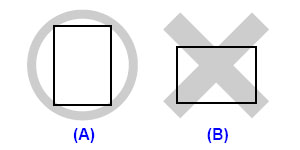
Caution
We recommend using genuine Canon photo media when printing photographs. For details on the specialty media Canon provides for use with its various printers, see [Compatible Media Types].
Loading Paper in the Rear Tray
1. Flatten the four corners of the paper before loading it.
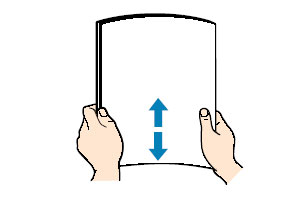
Caution
– When you do not print, remove unused paper from the Rear Tray, put them back into the package, and keep it on a level surface.
– Take out only the necessary number of sheets from the package, just before printing.
2. Prepare to load paper.
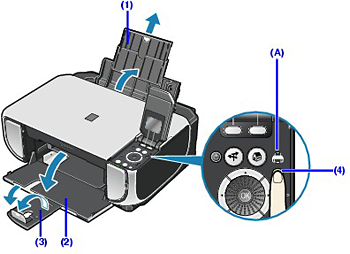
(1) Open the Sheet Feeder Cover and pull out the Paper Support.
Put your finger in the rounded indent of the Paper Support and pull it out until it stops.
(2) Open the Front Tray.
Put your finger in the indent on the top of the Front Tray and open it gently.
(3) Extend the Output Paper Support.
(4) Press the Paper Feed Switch so that the Rear Tray lamp (A) lights.
Caution
You can also select the paper source with the printer driver.
3. Load the paper.
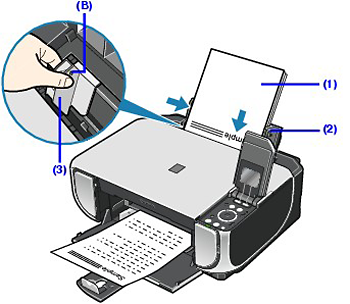
Do not load higher than the Load Limit Mark (B).
(1) Load the paper in the Rear Tray with the print side facing UP.
(2) Align the paper stack against the Cover Guide on the right side of the Paper Support.
Caution
Make sure that the Cover Guide is set upright when you load paper in the Rear Tray.
(3) Pinch the Paper Guide and slide it against the left side of the paper stack.
Caution
Do not slide the Paper Guide too hard. Paper may not be fed properly.
4. Specify the page size and media type settings according to the loaded paper.
Caution
When performing copy direct printing without using a computer, select the size and type of the loaded paper in Page size and Media type in each mode.
When using the machine connected to a computer, select the size and type of the loaded paper in Page Size (or Paper Size) and Media Type in the printer driver.
Loading Paper in the Front Tray
You can load A4, Letter, or B5-sized plain paper (such as Canon Super White Paper SW-201) in the Front Tray. You cannot load any other paper in the Front Tray.
1. Flatten the four corners of the paper before loading it.
2. Prepare to load paper.
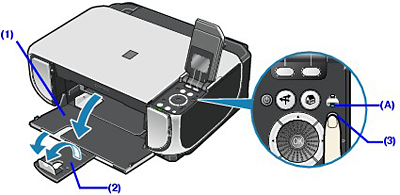
(1) Open the Front Tray.
Put your finger in the indent on the top of the Front Tray and open it gently.
(2) Extend the Output Paper Support.
(3) Press the Paper Feed Switch so that the Front Tray lamp (A) lights.
Caution
You can also select the paper source with the printer driver.
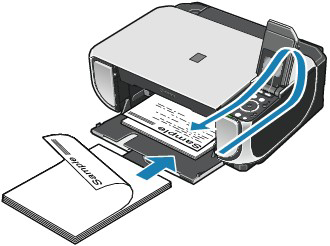
3. Load the paper with the print side facing DOWN.
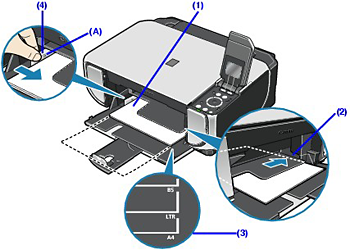
Do not load higher than the Load Limit Mark (A).
(1) Load the paper in the Front Tray with the print side facing DOWN and the leading edge to the far side.
(2) Align the paper stack against the right edge of the Front Tray.
(3) Align the near and the left edges of the paper with the Paper Size Mark.
(4) Pinch the Paper Guide and slide it against the left side of the loaded paper stack.
Caution
When loading paper in the Front Tray, refer to the illustration below and make sure not to load paper with the wrong side up.
4. Specify the page size and media type settings according to the loaded paper.
Caution