Canon Group
Close Close
Menu Menu Close Close Search

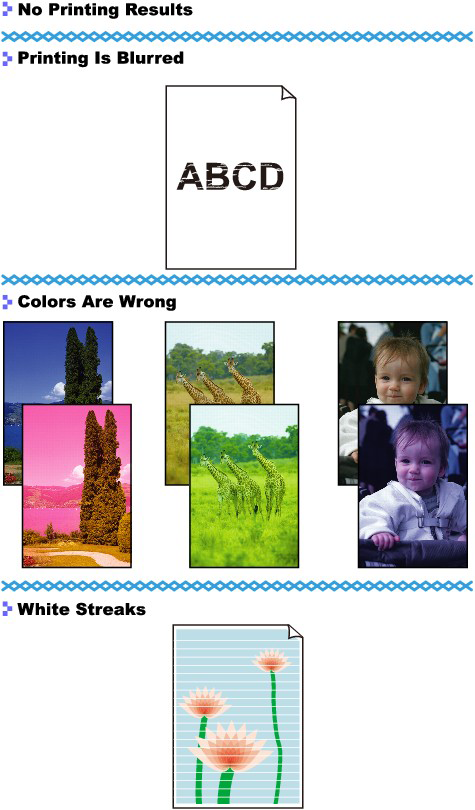
No Printing Results/Printing Is Blurred/Colors Are Wrong/White Streaks

Content Id: 8200212300


Issue

Cause and solution

Check 1: Did you confirm the paper and print quality settings?

Cause and solution

Check 2: Is the FINE Cartridge installed properly?

Remove the FINE Cartridge, then reinstall it. The print result may be improved by reinstalling the FINE Cartridge.
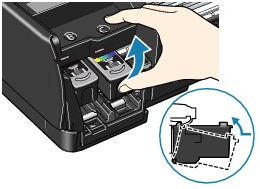
Also, check that the protective tape (A) is removed.
Cause and solution

Check 3: Print the Nozzle Check Pattern and perform any necessary maintenance operations such as Print Head Cleaning

Print the Nozzle Check Pattern to determine whether the ink ejects properly from the print head nozzles.

Refer to Routine Maintenance for the [ Printing the Nozzle Check Pattern ], [ Cleaning the Print Head ], and [ Cleaning the Print Head Deeply ].

If the Nozzle Check Pattern is not printed correctly:After performing the Print Head Cleaning, print the Nozzle Check Pattern and examine the pattern.
If the problem is not resolved after performing the Print Head Cleaning twice:Perform the Print Head Deep Cleaning.If the problem is not resolved after performing the Print Head Deep Cleaning, try it again.
If the problem is not resolved after performing the Print Head Deep Cleaning twice:Ink may have run out. Replace the FINE Cartridge.

Cause and solution

Check 4: When a FINE Cartridge runs out of ink, replace it with a new one

When FINE Cartridges run out of ink, follow the procedure below to replace them.

Caution

Handling FINE Cartridges
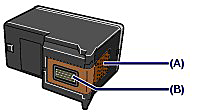
Do not touch the electrical contacts (A) or print head nozzles (B) on a FINE Cartridge. The printer may not print out properly if you touch it.

To maintain optimal printing quality, we recommend the use of specified Canon brand FINE Cartridges. Refilling ink is not recommended.
If you remove a FINE Cartridge, replace it immediately. Do not leave the printer with FINE Cartridges removed.
Replace empty cartridges with new ones. If you insert FINE Cartridges that have been removed once, the printer may not print out properly due to some reasons such as clogging of the nozzles. Furthermore, with such cartridges, the Low Ink Warning may not appear properly.
To maintain optimal print quality, install FINE Cartridges in the printer within the date indicated on the package box. And also use up FINE Cartridges within six months after the installation (We recommend you to put down the date when installing them).

Caution

If a FINE Cartridge runs out of ink, you can print with either Color or Black FINE Cartridge, in whichever ink remains, only for a while. However the print quality may be reduced compared to when printing with both cartridges. We recommend to use new FINE cartridges in order to obtain optimum qualities. Even when printing with one ink only, print with leaving the empty FINE Cartridge installed. If either of the Color FINE Cartridge or Black FINE Cartridge is not installed, an error occurs and the printer cannot print.
Color ink may be consumed even when printing a black-and-white document or when black-and-white printing is specified. Every ink is also consumed in Print Head Cleaning and Print Head Deep Cleaning, which may be necessary to maintain the printer's performance. When ink has run out, replace the FINE Cartridge immediately with a new one.

1.Make sure that the power is turned on, and open the Front Cover.

The FINE Cartridge Holder moves to the replacement position.

Caution
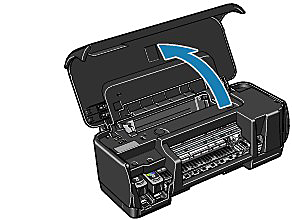
Do not hold the FINE Cartridge Holder to stop or move it forcibly.
Do not touch the metallic parts or other parts inside the printer.

Caution

If the Front Cover is left open for more than 10 minutes, the FINE Cartridge Holder moves to the right. In this case, close and reopen the Front Cover.

2.Remove the empty FINE Cartridge.
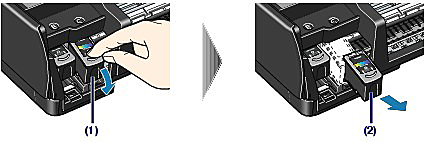
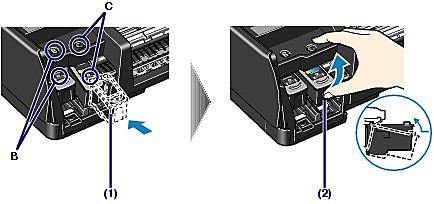
(1) Push down the FINE Cartridge.

(2) Remove the FINE Cartridge.

Caution

Handle FINE Cartridges carefully to avoid staining of clothing or the surrounding area.
Discard empty FINE Cartridges according to the local laws and regulations regarding disposal of consumables.

3.Prepare the new FINE cartridge.

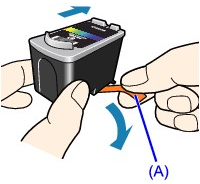
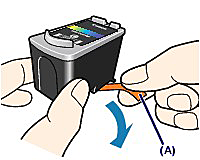
Take the new FINE Cartridge out of its package and remove the orange protective tape (A) gently.
Caution

If you shake a FINE Cartridge, ink may spill out and stain your hands or the surrounding area. Handle FINE Cartridges carefully.
Be careful not to stain your hands or surrounding area with ink on the removed protective tape.
Do not reattach the protective tape once you have removed it. Discard it according to the local laws and regulations regarding disposal of consumables.
Do not touch the electrical contacts or print head nozzles on a FINE Cartridge. The printer may not print properly if you touch it.

4.Install the FINE Cartridge.

(1) Insert a new FINE Cartridge all the way into the appropriate slot.

The Black FINE Cartridge should be installed into the left slot (B) and the Color FINE Cartridge should be into the right slot (C).

(2) Push up the FINE Cartridge until it clicks into place.

Caution

The printer cannot print unless both the Black and Color FINE Cartridges are installed. Be sure to install both the FINE Cartridges.

5.Close the Front Cover.

Caution

If the Alarm lamp still flashes orange after the Front Cover is closed, refer to the [ Alarm Lamp Flashes Orange ]
When you start printing after replacing the FINE Cartridge, the printer starts cleaning the Print Head automatically. Do not perform any other operations until the printer completes the cleaning of the Print Head. The Power lamp flashes green during cleaning.
If the printed ruled lines are misaligned or the print head position is misaligned, align the print head position. See [ Aligning the Print Head ].
Replacing a FINE Cartridge

Cause and solution

Check 5: When using paper with one printable surface, make sure that the paper is loaded with the printable side facing up

Printing on the wrong side of such paper may cause unclear prints or prints with reduced quality.

Refer to the instruction manual supplied with the paper for detailed information on the printable side.

Cause and solution

Check 6: Change the Paper Thickness Lever setting

Adjust the position of the Paper Thickness Lever according to the type of paper you are printing on.

Refer to [ Loading Paper ].

Depending on the printing content, the printing surface may become scratched or the corners or edges of the paper may become smudged even for the types of paper which require you to set the lever to the left. In this case, set the Paper Thickness Lever to the right.

* Reset the Paper Thickness Lever to the left when you finish printing. If the lever is not set back to the left, the inside of the printer is more likely to get dirty due to the wider clearance between the print head and the loaded paper. It may also reduce print quality.

Caution

If the corners or edges of the paper are smudged, try to print with the Paper Thickness Lever set to the right.

"Was this helpful?"