
 Close
Close









Solution
Installing with [Easy Installation]Installing with [Custom Installation]
Checking the Results of the Installation
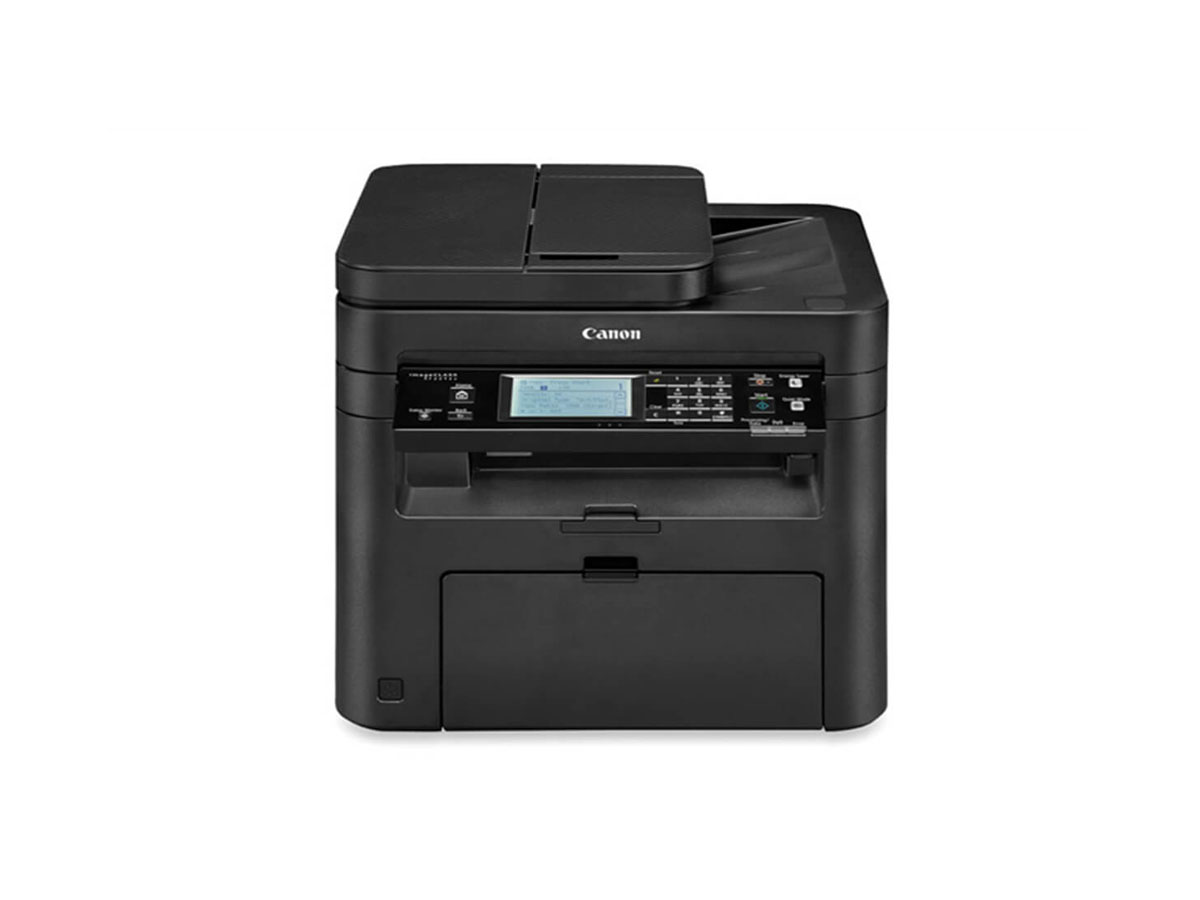
This section explains how to install the MF Drivers and MF Toolbox so the machine is ready to print from a computer.
You can choose to install standard software and the e-Manual with [Easy Installation], or specify the software and manuals to install with [Custom Installation].
Caution
The options to be displayed differ depending on your country or region.
Installing with [Easy Installation]
1. Log on to the computer with an administrator account.
2. Insert the User Software and Manuals CD-ROM/DVD-ROM into the drive on the computer.
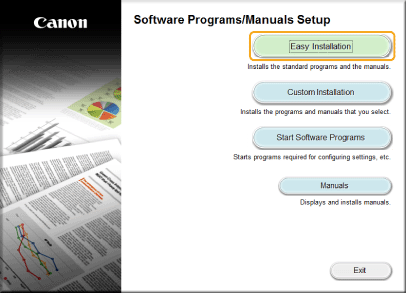
3. Click [Easy Installation].
Caution
- Windows XP/Server 2003/Server 2003 R2
[Start] 
- Windows Vista/7/Server 2008/Server 2008 R2
[Start]
- Windows 8/Server 2012
Right-click the lower-left corner of the screen
- Windows 8.1/Server 2012 R2
Right-click [Start]
* This following example uses "D:" as the name of the DVD-ROM drive. The DVD-ROM drive name may be different on your computer.
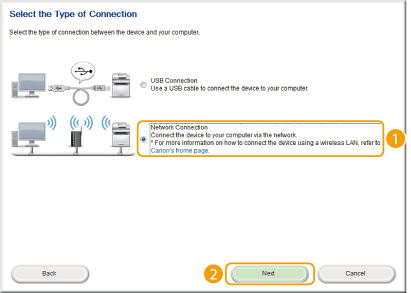
4. Select the connection method with the computer.
Select [Network Connection], and click [Next].
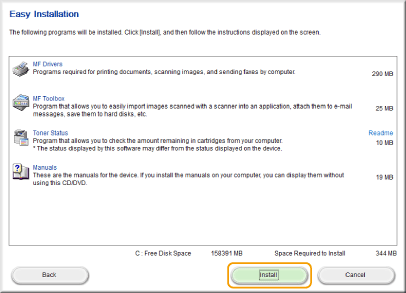
5.Click [Install].
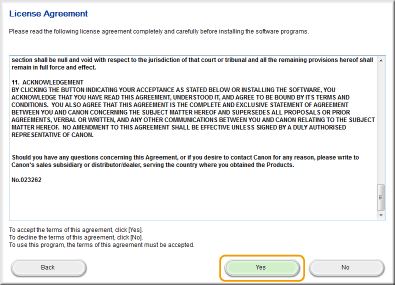
6. Read the License Agreement and click [Yes] to agree.
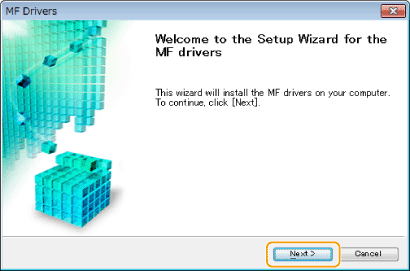
7. Click [Next].
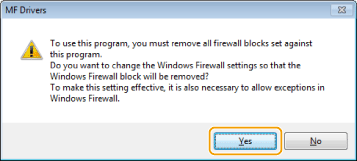
When the following screen appears, click [Yes].
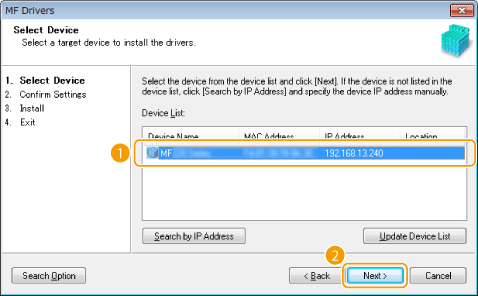
8. Select the machine, and click [Next].
Caution
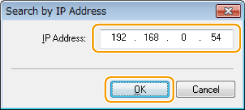
Check the computer and machine connection and IP address settings (For details , see the "e-Manual" (HTML manual) in the DVD-ROM supplied with the machine.), and click [Update Device List]. If the machine is still not displayed at all, click [Search by IP Address]
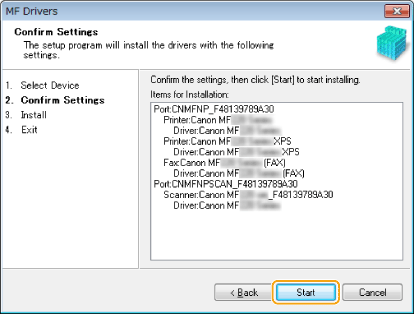
9. Check the settings, and click [Start].
10. Click [Exit].
11. Click [Start].
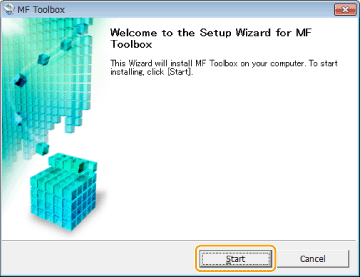
12. Click [Exit].
13. Follow the on-screen instructions to install Toner Status.
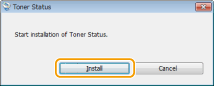
14. Follow the on-screen instructions to install the e-Manual.
15. Read the information in the following screen carefully, select [Accept] or [Do Not Accept], and click [Next].
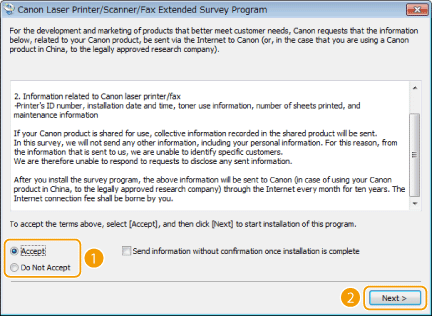
Caution
If you select [Accept], the Product Extended Survey Program is installed.
16. Click [Next].
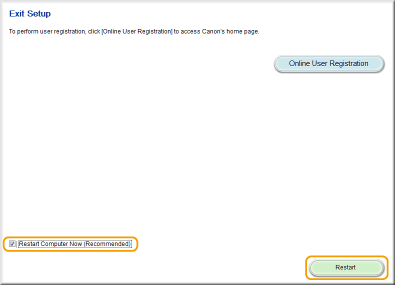
17. Select the [Restart Computer Now (Recommended)] check box, and click [Restart] after removing the DVD-ROM.
Installing with [Custom Installation]
1. Log on to the computer with an administrator account.
2. Insert the User Software and Manuals CD-ROM/DVD-ROM into the drive on the computer.
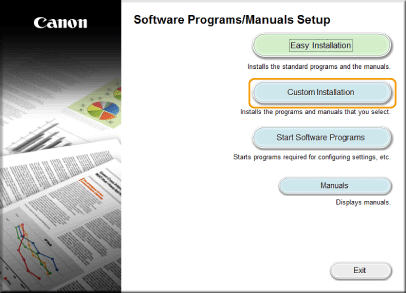
3. Click [Custom Installation].
Caution
- Windows XP/Server 2003/Server 2003 R2
[Start]
- Windows Vista/7/Server 2008/Server 2008 R2
[Start]
- Windows 8/Server 2012
Right-click the lower-left corner of the screen
- Windows 8.1/Server 2012 R2
Right-click [Start]
* This following example uses "D:" as the name of the DVD-ROM drive. The DVD-ROM drive name may be different on your computer.
4. Select the connection method with the computer.
Select [Network Connection], and click [Next].
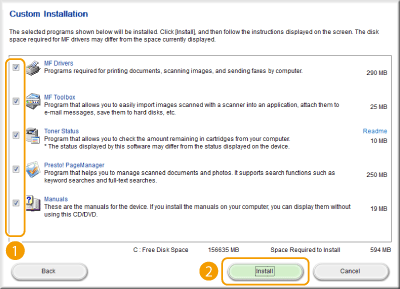
5. Select the check box next to the application you want to install and click [Install].
6. Read the License Agreement and click [Yes] to agree.
7. Click [Next].
When the following screen appears, click [Yes].
8. Select the machine, and click [Next].
Caution
If no machines are displayed in [Device List]:
enter the IP address set on the machine [OK].9. Select the drivers to install, and click [Next].
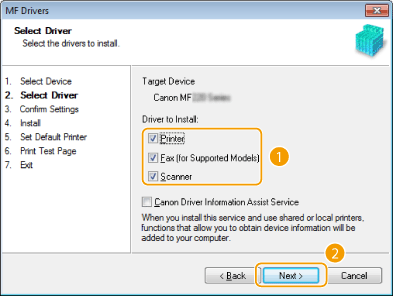

To obtain device information for using a print server
10. Specify details for each driver.
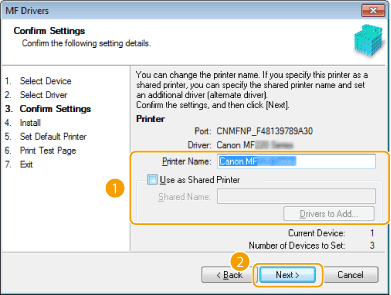
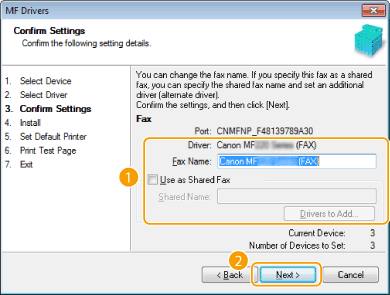
[Printer Name]/[Fax Name]
[Use as Shared Printer]/[Use as Shared Fax]
[Shared Name]
[Drivers to Add]
11. Check the displayed information, and click [Start].
12. Configure the machine normally used and make a test print.
13. Click [Exit].
14. Click [Next].
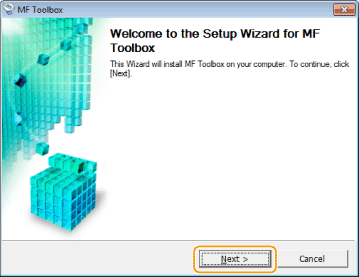
15. Specify the folder for installing to, and click [Next].
16. Specify the folder for adding an icon, and click [Next].
17. Click [Start].
18. Click [Exit].
19. Follow the on-screen instructions to install Toner Status.
20. Follow the on-screen instructions to install Presto! PageManager and the e-Manual.
21. Read the information in the following screen carefully, select [Accept] or [Do Not Accept], and click [Next].
Caution
If you select [Accept], the Product Extended Survey Program is installed.
22. Click [Next].
23. Select the [Restart Computer Now (Recommended)] check box, and click [Restart] after removing the DVD-ROM.
Checking the Results of the Installation
You can check whether the MF Drivers, MF Toolbox, e-Manual, and etc. are installed correctly or not by whether the icons appear.
| Printer driver | |
 | When the printer driver is installed correctly, an icon for the installed printer appears in the printer folder. |
| Fax driver | |
 | When the fax driver is installed correctly, an icon for the installed fax appears in the printer folder. |
| Scanner driver | |
 | When the scanner driver is installed correctly, an icon for the installed scanner appears in the [Scanners and Cameras] or [Scanners and Cameras Properties] folder. |
| MF Toolbox | |
 | When MF Toolbox is installed correctly, an MF Toolbox icon appears on the desktop. |
| Network Scan Utility | |
 | When Network Scan Utility is installed correctly, a Network Scan Utility icon appears in the taskbar. |
| e-Manual | |
 | When the e-Manual is installed correctly, an e-Manual icon appears on the desktop.
• If you install the e-Manual with [Custom Installation], the icon does not appear. |
| Toner Status | |
 | When Toner Status is installed correctly, a Toner Status icon appears in the taskbar. |
Caution
If the icon is not displayed
Other software