
 Close
Close









Solution
Wireless SetupWireless Setup Using WCN (Windows Connect Now)
Install the Software (Network Connection)
Information
Wireless Setup
Caution
Before connecting the machine to the network, make sure that the computer and access point or router is connected.
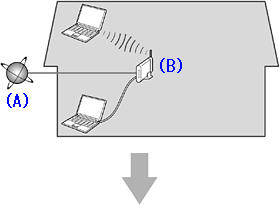
Add (connect) the machine to the network.
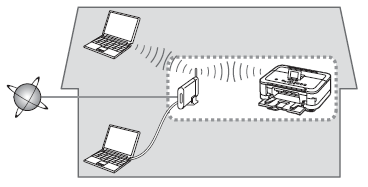
A: Internet
B: Access point or wireless router, etc.
- Notes on Wireless Connection
Caution
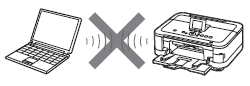
An "Ad-hoc connection," which establishes a direct connection to the computer over a wireless connection without using an access point, is not supported. Be sure to prepare an access point.
Wireless Setup Using WCN (Windows Connect Now)
- Windows 7
1. Click Start ⋗ Control Panel ⋗ View network status and tasks ⋗ Manage wireless networks.
2. Select the network name (SSID) and right-click it, then select Properties.
3. Select Copy this network profile to a USB flash drive.
Follow the on-screen instructions to complete the settings on the computer.
4. Go to "Setup on the Machine".
- Windows Vista
1. From the Start menu of the Windows side, select Network, then click Add a wireless device on the menu.
2. Click I want to add a wireless device or computer that is not on the list, using a USB flash drive.
3. Click Add the device or computer using a USB flash drive.
4. Select the network name (SSID), then click Next.
Follow the on-screen instructions to complete the settings on the computer.
5. Go to "Setup on the Machine".
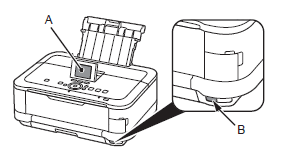
1. Select Wireless LAN setup of the Setup menu screen on the LCD (A), then touch the OK button.
2. Select Other setup, then touch the OK button.
3. Select WCN, then touch the OK button.
4. Connect the USB flash drive to the Direct Print Port (USB connector) (B) on the front right of the machine, then touch the OK button.
5. When Wireless LAN settings completed. screen is displayed, touch the OK button and eject the USB flash drive.
Caution
The machine supports "WCN-UFD".
Install the Software (Network Connection)
Caution
Caution
Easy-WebPrint EX is Web print software that is installed on the computer when installing the supplied software. Internet Explorer 7 or later is required to use this software. An Internet connection is required for installation.
1.
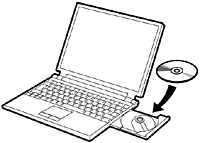
Turn on the computer, then insert the Setup CD-ROM into the CD-ROM drive.
If you are using Windows, the setup program starts automatically.
Caution
When the CD-ROM contents appear, double-click MSETUP4.EXE.
2. Windows 7/Windows Vista
Windows XP -⋗ 3
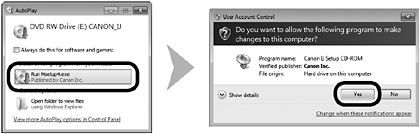
Click Run Msetup4.exe on the AutoPlay screen, then click Yes or Continue on the User Account Control dialog box.
If the User Account Control dialog box reappears in following steps, click Yes or Continue.
3.
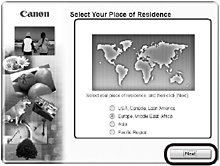
Select your place of residence, then click Next.
Caution
If the Select Language screen appears, select a language, then click Next.
4.
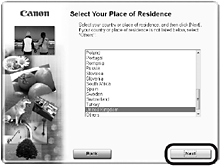
Select a country or region, then click Next.
5.
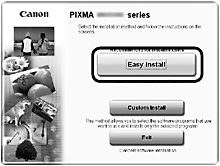
Click Easy Install.
The drivers, application software, and on-screen manuals are installed.
Caution
6.
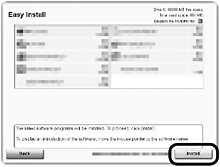
Click Install.
7.
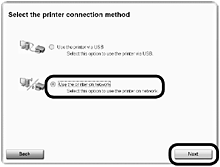
Select Use the printer on network, then click Next.
Follow any on-screen instructions to proceed with the software installation.
8.
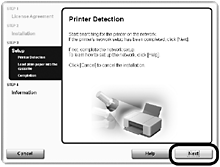
When the Printer Detection screen appears, click Next.
Caution
If the Printer Connection screen appears instead of the screen above, the connection method is not correctly selected in 7.
- Click Cancel and start again from 6 , then be sure to select Use the printer on network in 7.
9.
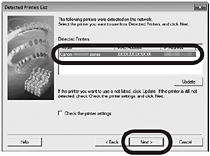
When the Detected Printers List dialog box appears, select Canon MG6100 series, then click Next.
Caution
10.
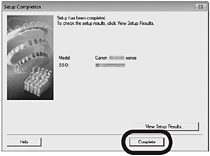
When the Setup Completion dialog box appears, click Complete.
Information
1.
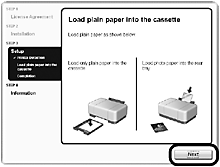
Click Next.
Information Follow any on-screen instructions to proceed with the software installation.
- Important Information for the Installation
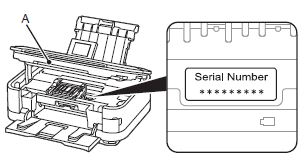
When the serial number is not displayed on the registration screen automatically, input the serial number located inside the machine (as shown in the illustration).
Caution
Caution
The User Registration screen will only be displayed when Europe, Middle East, Africa
is selected on the Select Your Place of Residence screen.
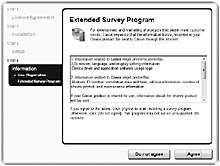
If you can agree to Extended Survey Program, click Agree.
If you click Do not agree, the Extended Survey Program will not be installed.
(This has no effect on the machine’s functionality.)
2.
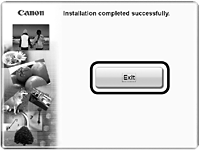
Click Exit to complete the installation.
3.
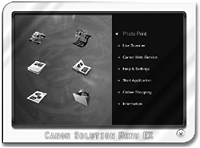
Solution Menu EX starts.
Remove the Setup CD-ROM and keep it in a safe place.
Caution
The buttons displayed on Solution Menu EX may vary depending on the country or region of purchase.
In Windows 7 and Windows Vista SP1 or later, the XPS Printer Driver can be installed additionally. To install, perform from 1 in "Install the Software (Network Connection)". Click Custom Install in 5 then select XPS Printer Driver in the Custom Install screen.
Now that the wireless connection of the machine is complete, it can be used from additional computers on the same network.
Install software including the drivers on the computer from which you want to use the machine. Other settings are not required.
To add computers from which to use the machine, go to [ How to perform the wireless LAN setup so that other computers can share the same printer (Windows) ].