
 Close
Close









Solution
Paper Sources to Load PaperLoading Plain Paper in the Cassette
Loading Photo Paper in the Rear Tray
Paper Sources to Load Paper
The printer has two paper sources to feed paper; cassette and rear tray.
You can load paper in either one of the paper sources, depending on the page size and media type of paper. Paper is fed from the cassette or rear tray depending on the selection of the page size or media type.
-⋗ [ Media Types You Can Use ]
Caution
When printing, select the correct page size and media type. If you select the wrong page size or media type, the printer may feed paper from the wrong paper source or may not print with the proper print quality.
For details on how to load paper in each paper source, see below.
-⋗ [ Loading Plain Paper in the Cassette ] within this webpage.
-⋗ [ Loading Photo Paper in the Rear Tray ] within this webpage.
When you use A4, B5, A5, or Letter-sized plain paper, load it in the cassette.
The printer feeds paper from the cassette automatically by selecting plain paper (A4, B5, A5, or Letter size) in the print settings with the printer driver when printing.
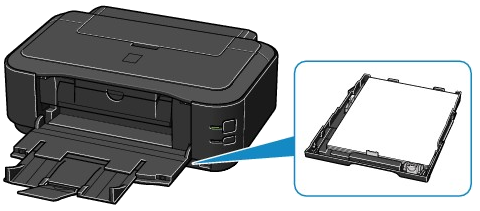
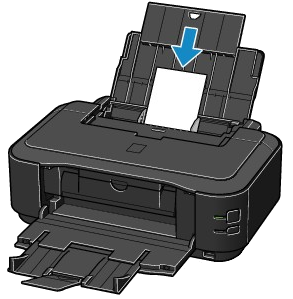
When you use photo paper, load it in the rear tray.
The printer feeds paper from the rear tray automatically by selecting the media types other than plain paper, such as photo paper, in the print settings with the printer driver when printing.
When you use plain paper other than A4, B5, A5, or Letter size, also load it in the rear tray.
Loading Plain Paper in the Cassette
You can load only A4, B5, A5, or Letter-sized plain paper in the cassette.
Load other sizes or types of paper in the rear tray.
Caution
For details on the Canon genuine paper, see [ Media Types You Can Use ].
For the page size and paper weight you can use for this printer, see [ Media Types You Can Use ].
1. Prepare paper.
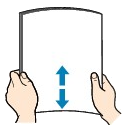
Align the edges of paper. If paper is curled, flatten it.
Caution
For details on how to flatten curled paper, see "Load the paper after correcting its curl." in [ Paper Is Smudged/Printed Surface Is Scratched ].
2. Prepare the cassette.
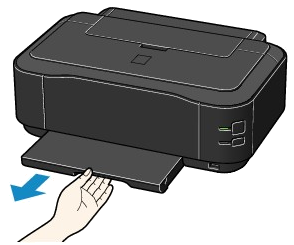
(1) Pull out the cassette from the printer.
(2) Remove the cassette cover.
(3) Pull the tab (A) towards you to unlock and extend the cassette.
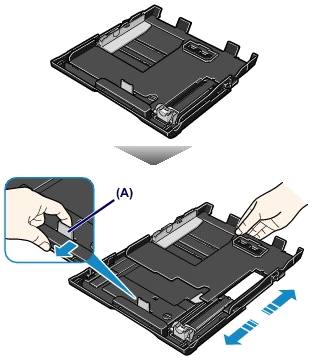
3. Load paper.
(1) Slide the paper guide (B) to align with the mark of page size.
The paper guide (B) will stop when it aligns with the corresponding page size mark.
(2) Load the paper stack WITH THE PRINT SIDE FACING DOWN and THE LEADING EDGE TO THE FAR SIDE, and align it against the right side of the cassette.
Caution
There may be a little space between the paper guide (B) and the paper stack.
(3) Slide the paper guide (C) on the left to align completely with the side of the paper stack.
Caution
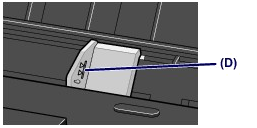
Do not load sheets of paper higher than the load limit mark (D).
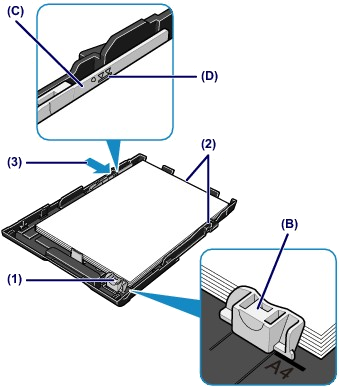
(4) Set the cassette cover.
(5) Insert the cassette into the printer.
Push the cassette all the way into the printer.
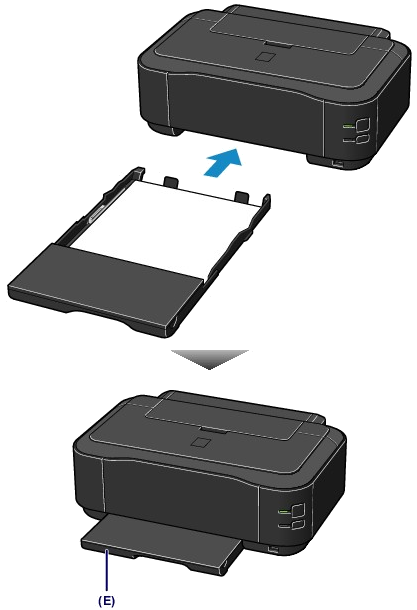
(E) The cassette sticks out of the printer when correctly set.
Caution
Do not force the cassette into the printer any further. This can damage the printer or cassette.
4. Open the paper output tray gently, and extend the output tray extension to open.
Caution
After loading paper
Loading Photo Paper in the Rear Tray
Caution
If you cut plain paper into small size such as 4" x 6" (10 x 15 cm), 4" x 8" (101.6 x 203.2 mm), 5" x 7" (13 x 18 cm), or 2.16" x 3.58" (55.0 x 91.0 mm) (Card size) to perform trial print, it can cause paper jams.
1. Prepare paper.
Align the edges of paper. If paper is curled, flatten it.
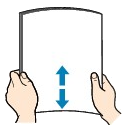
Caution
For details on how to flatten curled paper, see "Load the paper after correcting its curl." in [ Paper Is Smudged/Printed Surface Is Scratched ].
2. Load paper.
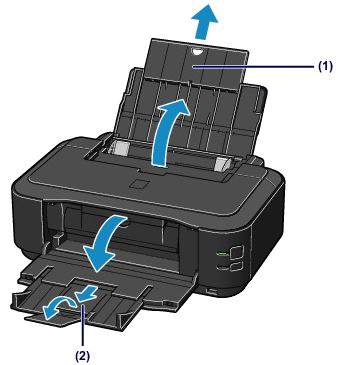
(1) Open the paper support, and pull it out.
(2) Open the paper output tray gently, and extend the output tray extension to open.
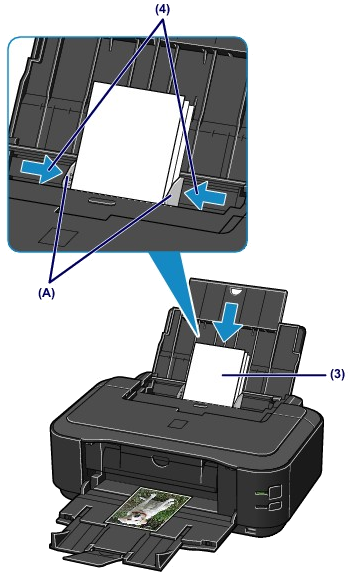
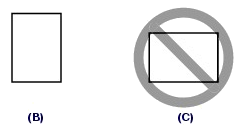
(3) Slide the paper guides (A) to open them, and load the paper in the center of the rear tray WITH THE PRINT SIDE FACING YOU.
(4) Slide the paper guides (A) to align them with both sides of the paper stack.
Do not slide the paper guides too hard against the paper. The paper may not be fed properly.
Caution
Caution
Caution
After loading paper