
 Close
Close









Issue
Cause and solution
Print Head nozzles are clogged
See [ Printing the Nozzle Check Pattern ] and perform any necessary maintenance operation.
Clean the Print Head if lines are missing or if white streaks appear in the printed nozzle check pattern. Cleaning unclogs the nozzles and restores the print head condition. Note that cleaning the Print Head causes used ink to be absorbed in the ink absorber. Cleaning the Print Head consumes ink, so perform Print Head Cleaning only when necessary.
Caution
Make sure that the Inner Cover is closed.
1. Make sure that the machine is turned on, and then load a sheet of A4 or Lettersized plain paper in the Rear Tray or Cassette.
2. Open the Paper Output Tray, and then open the Output Tray Extension.
2-1. Press the Open button to open the Paper Output Tray.
2-2. Open the Output Tray Extension.
3. Press the Feed Switch to select the paper source where you have loaded paper.
4. Start Print Head Cleaning.
4-1. Press the Menu button.
4-2. Use the 

4-3. Use the
4-4. Use the 

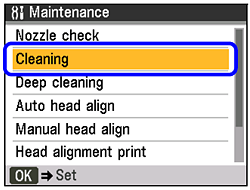
The confirmation screen is displayed.
4-5. Use the
Do not perform any other operations until Print Head Cleaning finishes. This takes about 1 minute.
The pattern print confirmation screen is displayed.
4-6. Use the
The nozzle check pattern is printed.
5. Check the print head condition with the printed nozzle check pattern, and take appropriate action.
See [ Printing the Nozzle Check Pattern ].
Caution
If the problem is not resolved after performing Print Head Cleaning twice, try Print Head Deep Cleaning. See [ Print Head Deep Cleaning ].
If print quality does not improve by standard Print Head Cleaning, try Print Head Deep Cleaning, which is a more powerful process. Note that cleaning the Print Head causes used ink to be absorbed in the ink absorber. Print Head Deep Cleaning consumes more ink than standard Print Head Cleaning, so perform this procedure only when necessary.
Caution
Make sure that the Inner Cover is closed.
1. Make sure that the machine is turned on, and then load a sheet of A4 or Lettersized plain paper in the Rear Tray or Cassette.
2. Open the Paper Output Tray, and then open the Output Tray Extension.
2-1. Press the Open button to open the Paper Output Tray.
2-2. Open the Output Tray Extension.
3. Press the Feed Switch to select the paper source where you have loaded paper.
4. Start Print Head Deep Cleaning.
4-1. Press the Menu button.
4-2. Use the 

The Maintenance/settings screen is displayed.
4-3. Use the
4-4. Use the 

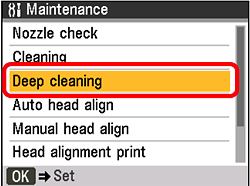
The confirmation screen is displayed.
4-5. Use the
Print Head Deep Cleaning starts.
Do not perform any other operations until Print Head Deep Cleaning finishes. This takes about 2 minutes.
The pattern print confirmation screen is displayed.
4-6. Use the
The nozzle check pattern is printed.
5. Check the condition of the Print Head.
5-1. Check the print head condition with the printed nozzle check pattern.
See [ Printing the Nozzle Check Pattern ].
If a particular color is not printed properly, replace the ink tank of that color.
See [ Replacing Ink Tanks ].
5-2. If the problem is not resolved, turn off the machine and perform another Print Head Deep Cleaning after 24 hours.
5-3. If this does not solve the problem, the Print Head may be damaged. Contact your Canon service representative.