Close
Close









Before connecting the machine to the network, the computer needs to be connected to the network. Make sure that configuration of the computer and access point or router is complete.
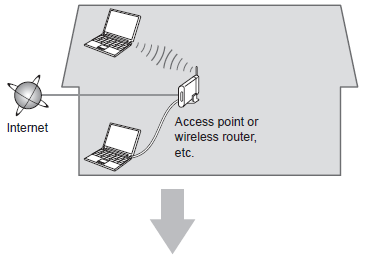
Add (connect) the machine to the network.
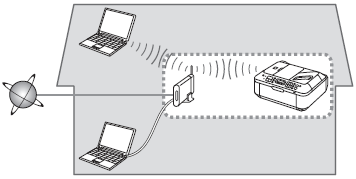
Notes on Wireless Connection
Caution
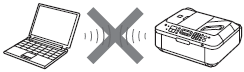
An "Ad-hoc connection," which establishes a direct connection to the computer over a wireless connection without using an access point, is not supported. Be sure to prepare an access point.
Install the Software
Caution
Do not connect the Wireless LAN setup cable yet.
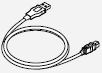
Software installation requires temporary use of the
Wireless LAN setup cable.
1.
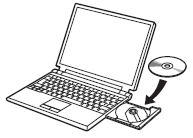
Turn on the computer, then insert the Setup CDROM into the CD-ROM drive.
If you are using Windows, the setup program starts automatically.
2.
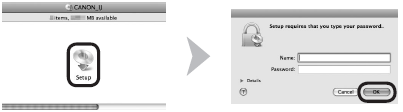


3.
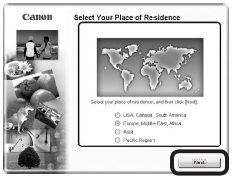
Select your place of residence, then click Next.
Caution
If the Select Language screen appears, select a language, then click Next.
4.
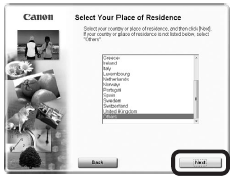
Select a country or region, then click Next.
Caution
Displayed only when Europe, Middle East, Africa or Asia is selected on the screen in 3.
5.
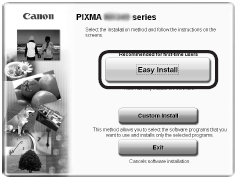
Click Easy Install.
The drivers, application software, and on-screen manuals are installed all together.
Caution
6.
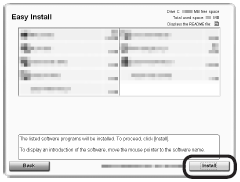
Click Install.
7.
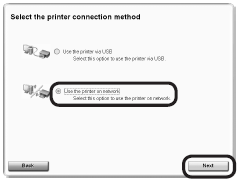
Select Use the printer on network, then click Next.
Follow any on-screen instructions to proceed with the software installation.
8.
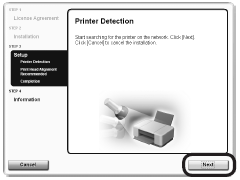
When the Printer Detection screen appears, click Next.
Caution
Follow on-screen instructions and proceed with the installation. Click Exit on the installation complete screen, then start again from 2 and be sure to select Use the printer on network in 7.
9.
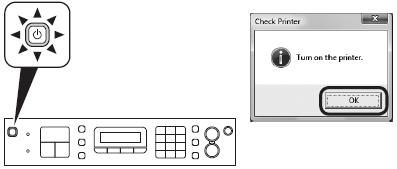
Make sure the machine is turned on, then click OK.
10.
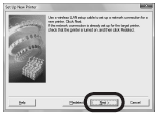
When the Set Up New Printer screen appears, click Next.
Caution
If the Detected Printers List screen appears, click Set Up New Printer.
11.
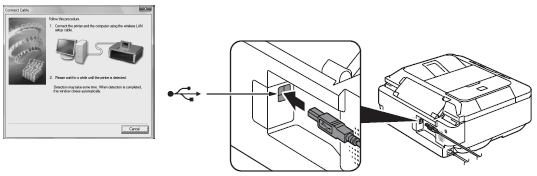
When the Connect Cable screen appears, connect the machine to the computer with the Wireless LAN setup cable.
Caution
Follow the on-screen instructions and click Next.
The Detected Access Points List screen -⋗ Go to 12-A.
The Confirm Connection Access Point screen -⋗ Go to 12-B.
12-A
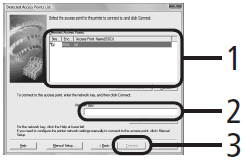
1.Select the target access point name/network name (SSID).
2.Enter the network key.
Enter upper and lower case letters of the alphabet correctly. Letters are case sensitive.
To use WEP key number 2, 3 or 4, click WEP Key Number, then specify the WEP key number.
3.Click Connect.
-⋗ Go to 13.
Caution
SSID
An identifier to identify the specific access point.
Network Key
Also referred to as encryption key, WEP key or WPA/WPA2 passphrase, Pre-Shared key. A password required to set to prevent unauthorized access to communication.
12-B
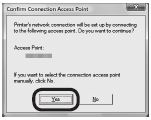
1. Make sure that the target access point is displayed, then click Yes.
If you are using Macintosh, a screen asking for permission to access the keychain appears. In this case, click Allow or Allow Once.
-⋗ Go to 13.
Caution
If the target access point is not displayed in the above screen, click No, then perform 12-A.
13.
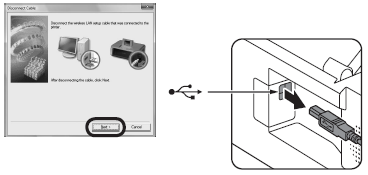
When the Disconnect Cable screen appears, remove the Wireless LAN setup cable, then click Next.
Caution
If the Automatic Setup or Auto Setup screen appears, click OK, then perform 12-A.
14.
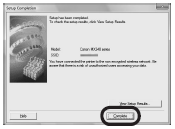
When the Setup Completion screen appears, click Complete or OK.
Install the Software (Registration)
This section describes how to register the machine on a Macintosh computer.
1.
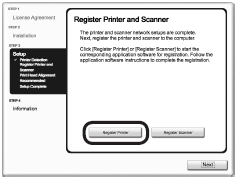
When the Register Printer and Scanner screen appears, click Register Printer.
Mac OS X v.10.6.x -⋗ Go to 2-A
Mac OS X v.10.5.x -⋗ Go to 2-A
Mac OS X v.10.4.11 -⋗ Go to 2-B
Caution
- The machine is turned on.
- The firewall function of any security software is turned off.
- The computer is connected to the access point.
2-A (Mac OS X v.10.6.x/v.10.5.x)
(1)
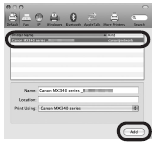
Select Canon MX340 series and click Add.
-⋗ Go to 3
2-B (Mac OS X v.10.4.11)
(1)
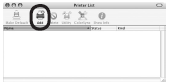
When the Printer List window appears, click Add.
Caution
When the You have no printers available. screen appears, click Add.
(2)
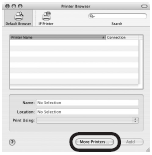
Click More Printers in the Printer Browser window.
(3)
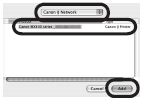
Select Canon IJ Network in the pop-up menu, select Canon MX340 series in the list of printers, then click Add.
(4)
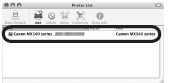
Make sure that Canon MX340 series is added to the list of printers.
-⋗ Go to 3.
3.
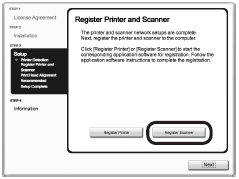
When the Register Printer and Scanner screen appears, click Register Scanner.
4.
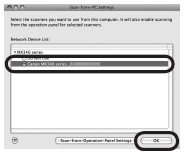
Select Canon MX340 series on the Scan-from-PC Settings screen, then click OK.
5.
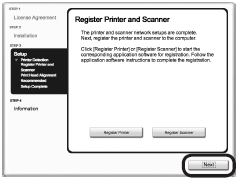
Click Next on the Register Printer and Scanner screen.
Install the Software (Information)
1.
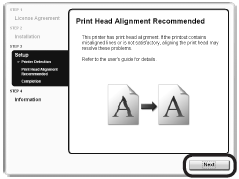
Click Next.
Follow any on-screen instructions to proceed with the software installation.
Important Information for the Installation
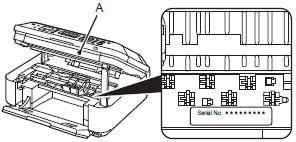
The product serial number is required when registering the product. The serial number is located inside the machine (as shown in the illustration).
Caution
If the power is on, the FINE Cartridge Holder will move when the Scanning Unit (Cover) (A) is opened.
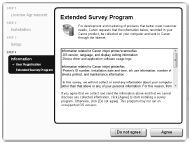
If you can agree to Extended Survey Program, click Agree.
If you click Do not agree, the Extended Survey Program will not be installed. (This has no effect on the machine's functionality.)
2.
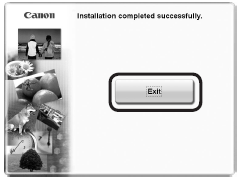
Click Exit to complete the installation.
If Restart is displayed, follow the instruction to restart the computer.
It is necessary to restart the computer before scanning using the Operation Panel on the machine for the first time.
Caution
3.
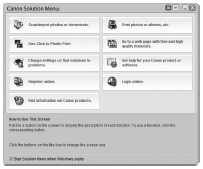

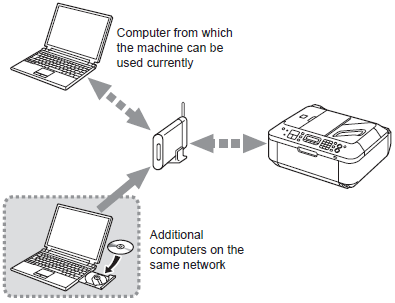
- Using the Machine from Additional Computers
Now that the wireless connection of the machine is complete, it can be used from additional computers on the same network.
Install software including the drivers on the computer from which you want to use the machine. Other settings are not required.
For the software installation procedure, refer to How to perform the wireless LAN setup so that other computers can share the same printer(Macintosh).