
 Close
Close









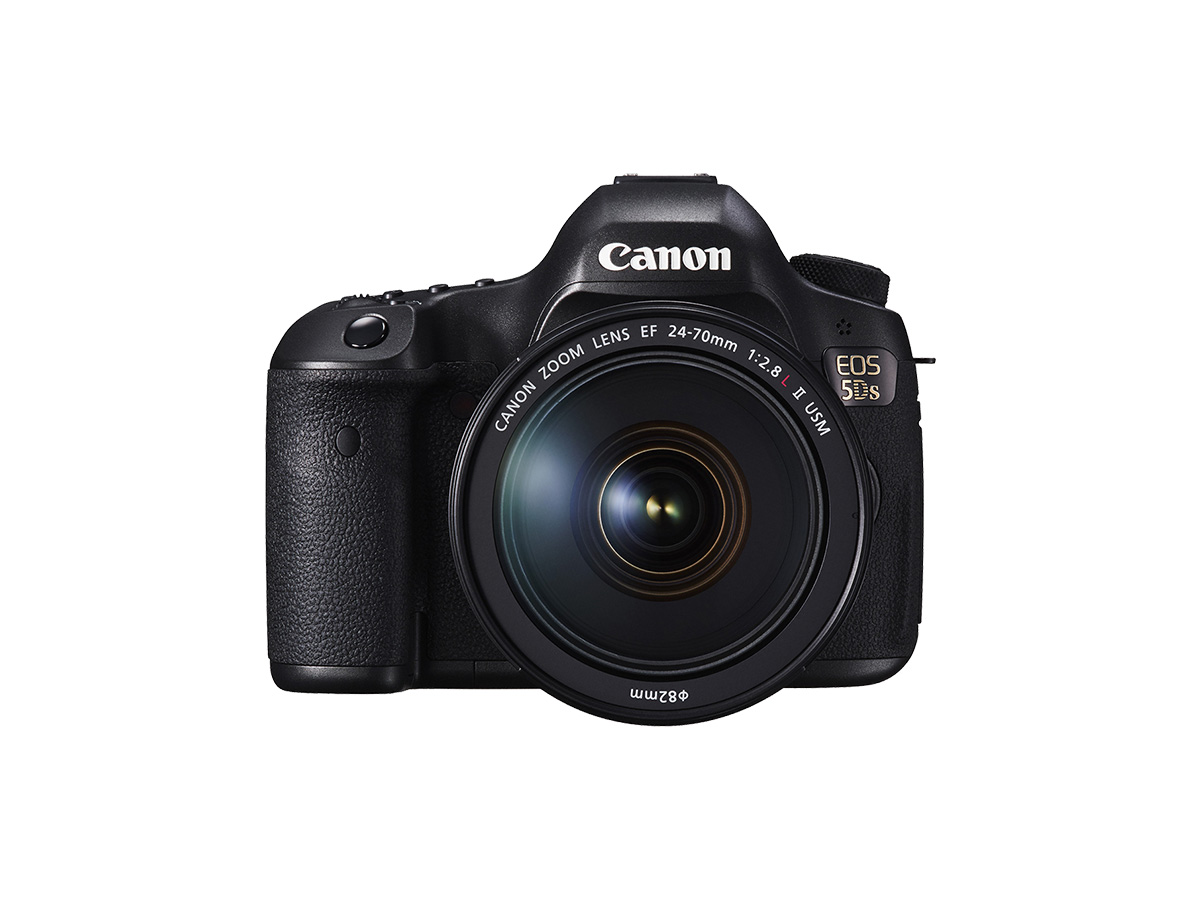
White balance (WB) is for making the white areas look white. Normally, the [ 
Caution
] is automatically set in [  ] mode.
Caution
White Balance
To the human eye, a white object looks white regardless of the type of lighting. With a digital camera, the color temperature is adjusted with software to make the white areas look white. This adjustment serves as the basis for the color correction. With this function, pictures with natural color shades can be taken.
Setting the White Balance
1. Set the camera’s power switch to [ON].
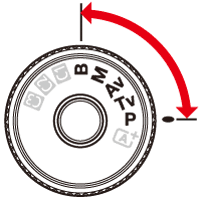
2. Set the Mode Dial to [ P / Tv / Av / M / B ].
3. Press the [WB・
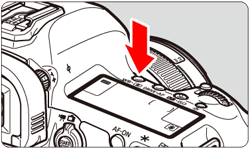
Caution
You can also set this with [ 
4. While looking at the LCD panel or viewfinder, turn the [ 
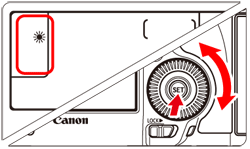
White Balance Setting Options
| Display | Mode | Color Temperature (Approx.) (K: Kelvin) |
|---|---|---|
 | Auto (Ambience priority ) | 3000-7000 |
 | Auto (White priority ) | |
 | Daylight | 5200 |
 | Shade | 7000 |
 | Cloudy, twilight, sunset | 6000 |
 | Tungsten light | 3200 |
 | White fluorescent light | 4000 |
 | Flash use | Automatically set* |
 | Custom | 2000-10000 |
 | Color temperature | 2500-10000 |
Caution
Custom white balance (
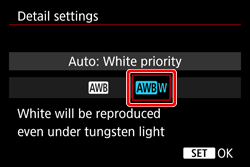
[Auto White Balance]
With the standard [
1. Select [ 
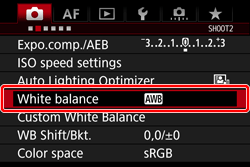
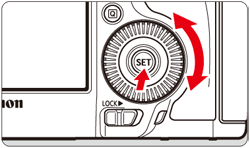
2. On the White balance setting screen, turn the [
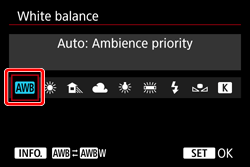
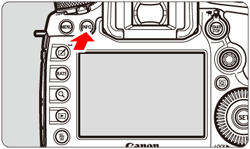
3. Turn the [
Caution
Cautions for Setting [
] (Ambience priority).